Prism Assistant: How to use Prism
ControlCheck Assistant is a conversational AI feature that allows diversion monitoring teams to interact with their ControlCheck data using natural language.
How to access Prism
To access Prism Assistant, select ‘Prism Assistant’ from the main navigation menu at the top of the screen.

The dashboard for Prism Assistant will display. The ‘New Session’ screen will display a chat box where you can prompt Prism to answer your requests.
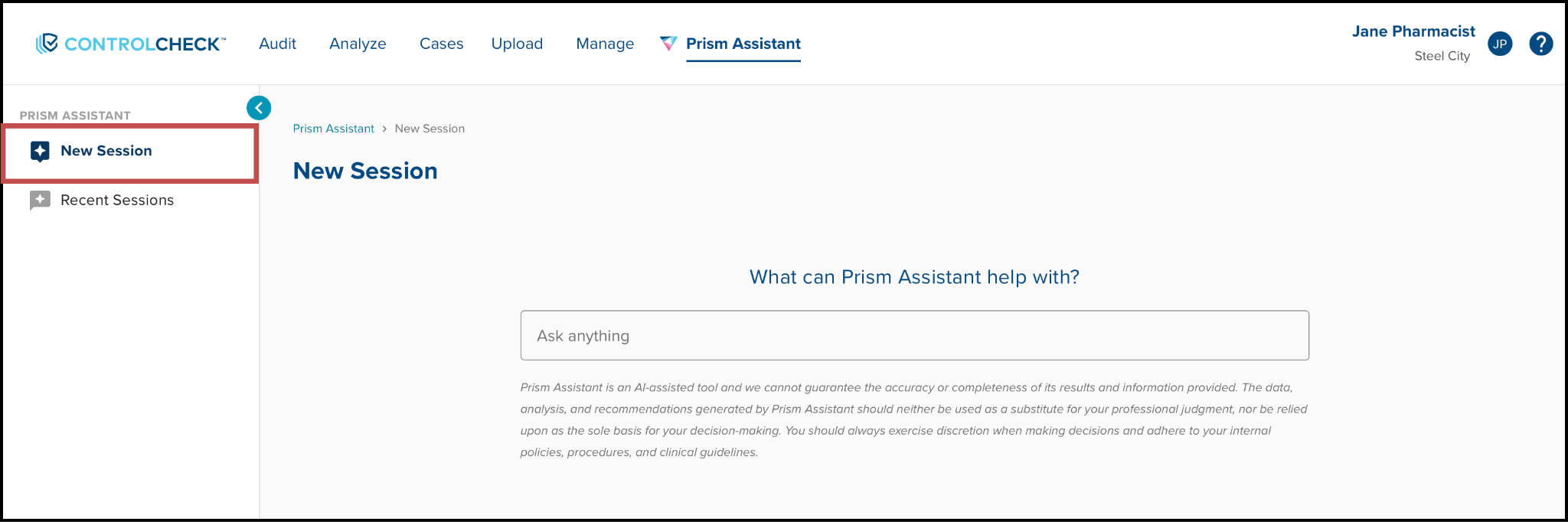
Initiating a new chat
To create a new chat, enter your prompt into the chat box shown on the screen. Hit enter to submit your prompt.
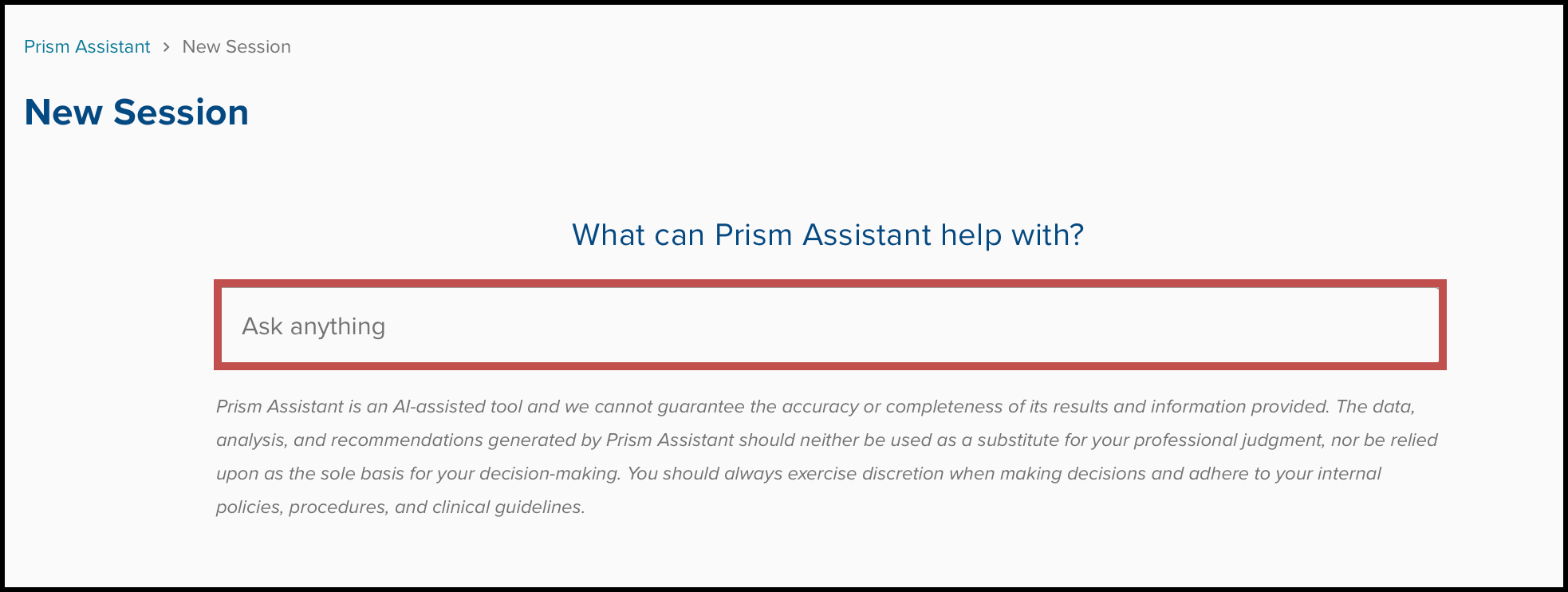
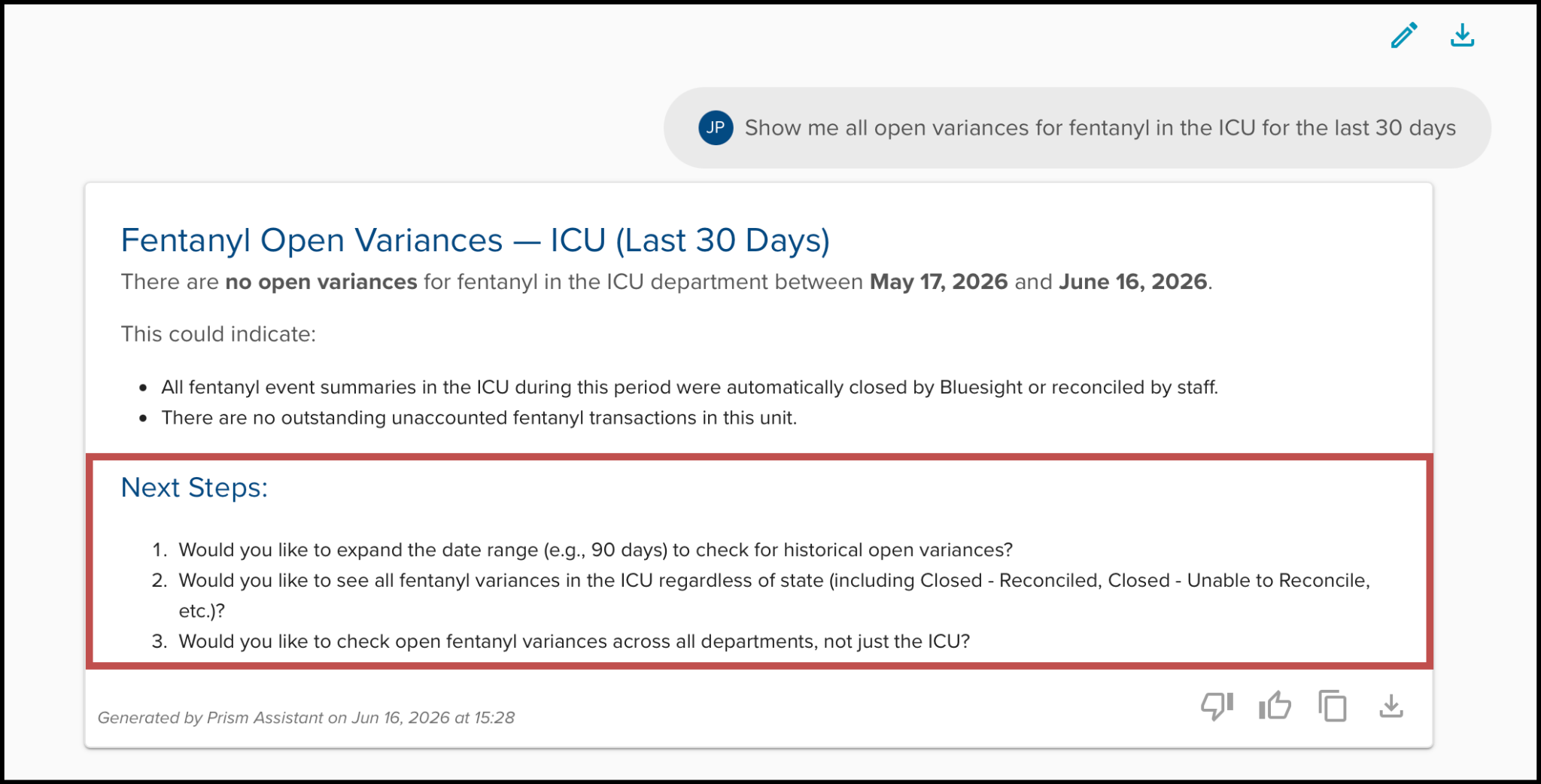
Prism Assistant will then generate your results.
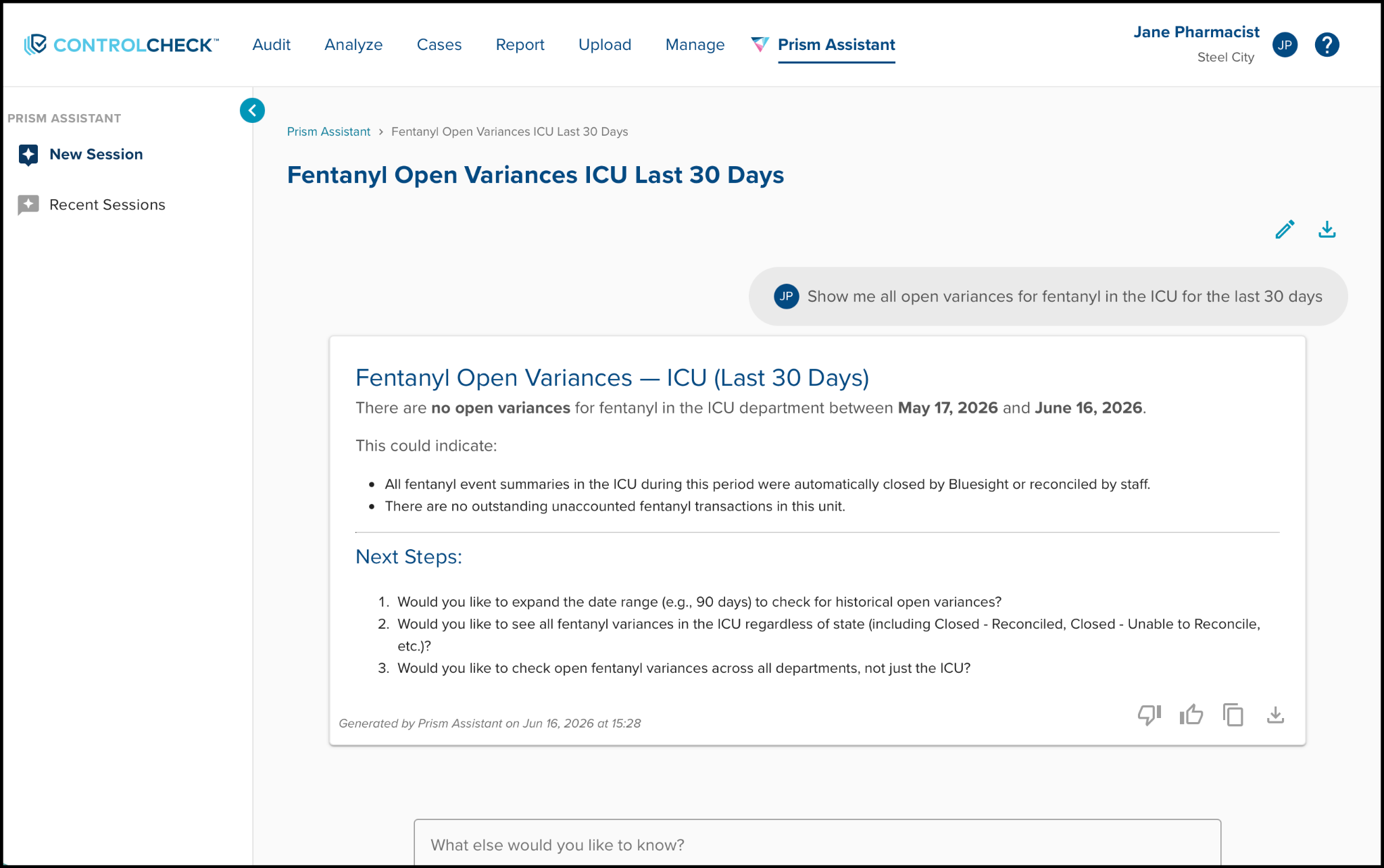
In the result window, there are four icons located in the lower right corner. These include a thumbs-up and thumbs-down icon. These allow you to mark the response as either helpful or unhelpful.
The copy icon allows you to copy the results to your clipboard. The print icon allows you to print the result shown.

Above your message, there are two additional icons. The pencil icon allows you to edit the session name. The second icon will download and print the chat as shown.
Additional next steps will appear within the results window, allowing you to further investigate the data.
Viewing Previous Chats
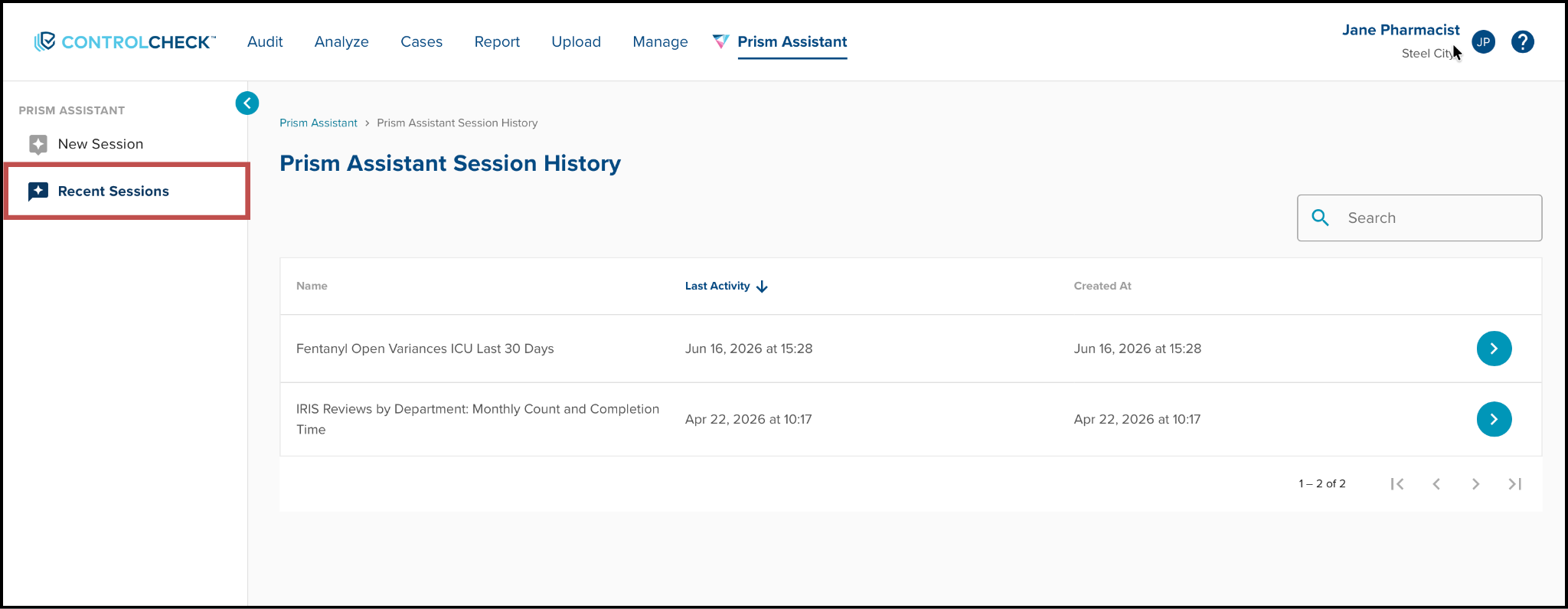
To review previous chats, select the ‘Recent Searches’ dashboard on the left side of the screen. Previous chats will be stored within this section, where you can select and continue past chats with the Prism Assistant.
Was this article helpful?
That’s Great!
Thank you for your feedback
Sorry! We couldn't be helpful
Thank you for your feedback
Feedback sent
We appreciate your effort and will try to fix the article