Locations Overview
The Locations dashboard allows you to map locations. This dashboard also allows you to create new and edit pre-existing departments.
The Locations Dashboard is divided into two tabs: The Unmapped Locations tab and the Departments tab.
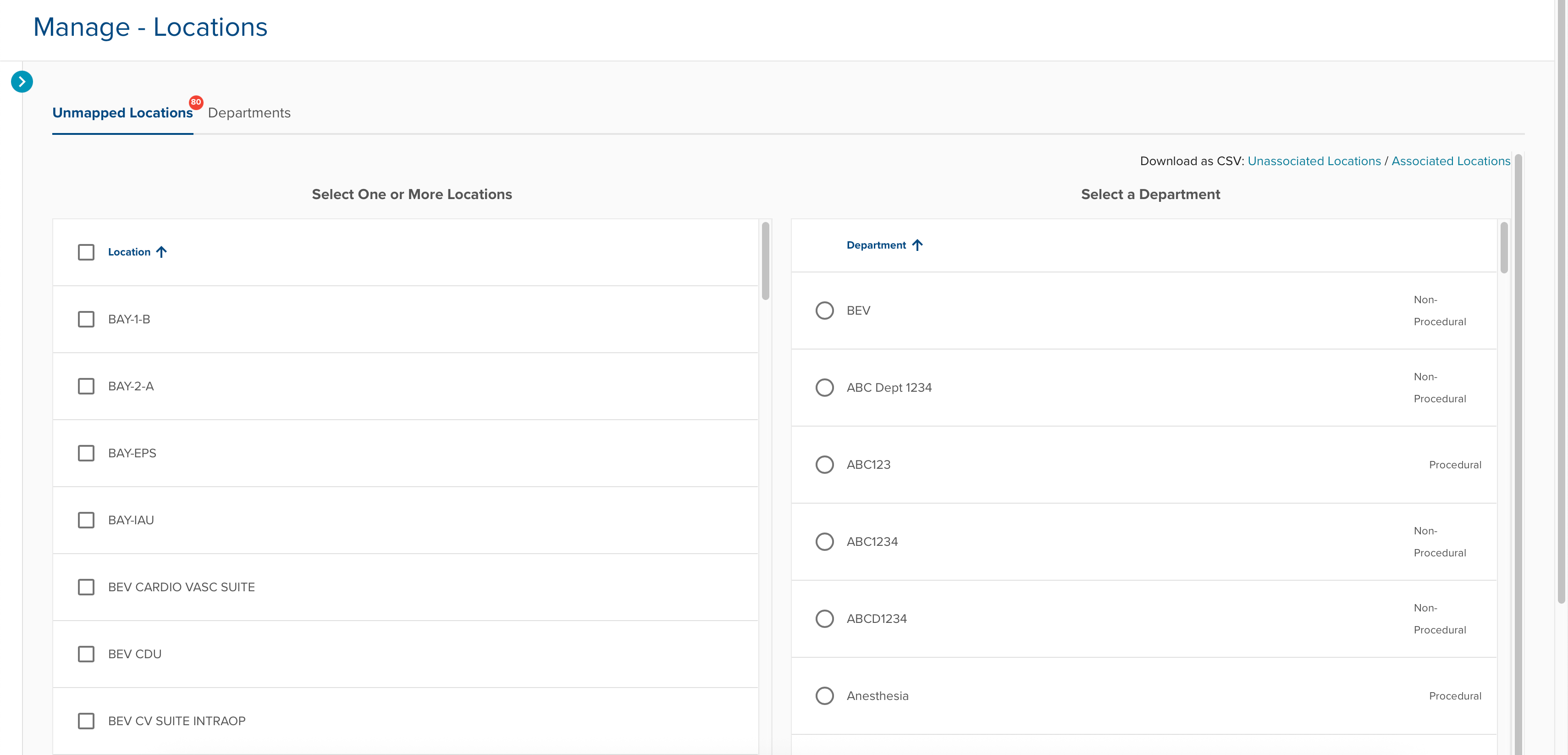
Unmapped Locations
When a location from transaction-level documentation has yet to be mapped to a department the Unmapped Locations dashboard will display a red alert. This dashboard is referred to as the Location Mapper and it allows you to assign locations to existing departments, as well as create new departments. The Location Mapper lists all unmapped locations in one table and all existing departments in another table. Users can check one or many locations, select a department, and then select the Map Location(s) to Department button to complete the mapping process.
Although you can map multiple locations at once you should know that each location can only be mapped to one department. To map all of the locations listed select the check box next to the Location column's header.
Adding a Department
Users can also create new departments for unmapped locations by selecting the Add a Department button, then entering the department name and selecting Save. Once finished select the Map Location(s) to Department button finish mapping the location.

After completing location-to-department mapping, ControlCheck will display a success message confirming the mapped location(s) and department.
Editing & Deleting Departments
To edit a department, select the blue carrot or the entire line item and you'll be forwarded to the Edit Department page. On this page, you can edit the department name, assign new locations, and select whether the department is procedural or non-procedural.
To Delete a department, select the Delete button on the Edit Department page.
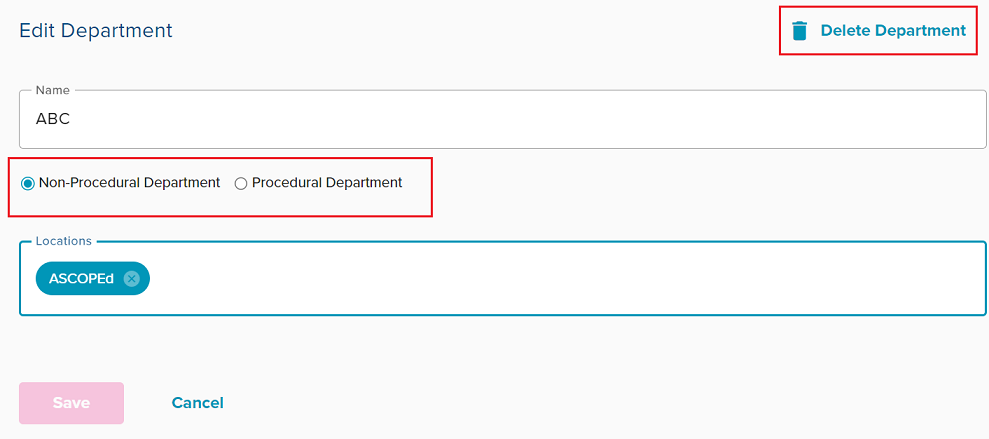
Non-Procedural vs Procedural Departments
Due to a recent update departments are labeled as non-procedural or procedural during their creation. Applying these labels will affect how IRIS is calculated for users. For example, the IRIS calculation for non-procedural users aggregates data from all nonprocedural departments for peer comparison. On the other hand, the IRIS calculation for procedural users aggregates data from all procedural departments for peer comparison.
If no department labels are updated, the current IRIS calculation will continue to compare users across all departments, and by default, ControlCheck will label pre-existing departments as non-procedural. To take advantage of this update, Manager-level users should navigate to the Departments dashboard, and apply the appropriate label to each department via the Edit Departments page.
Note: Please reference this link for more information and non-procedural/procedural departments.
Create a New Department
To create a department, select the Add a Department button at the bottom of the dashboard. Enter the name of the department, select whether it's non-procedural or procedural, and then select the Save button.

Was this article helpful?
That’s Great!
Thank you for your feedback
Sorry! We couldn't be helpful
Thank you for your feedback
Feedback sent
We appreciate your effort and will try to fix the article