Features
Multi-Hospital Med Mapping
We’re excited to deliver the ability to map a medication to multiple hospitals!
We’ve recognized that as our customers have grown, ControlCheck also needs to grow to help manage the increasing size and complexity of health systems. This feature is a large step forward towards assisting ControlCheck managers in scaling their ability to accurately map medications and standardize formularies across many locations.
How to Use
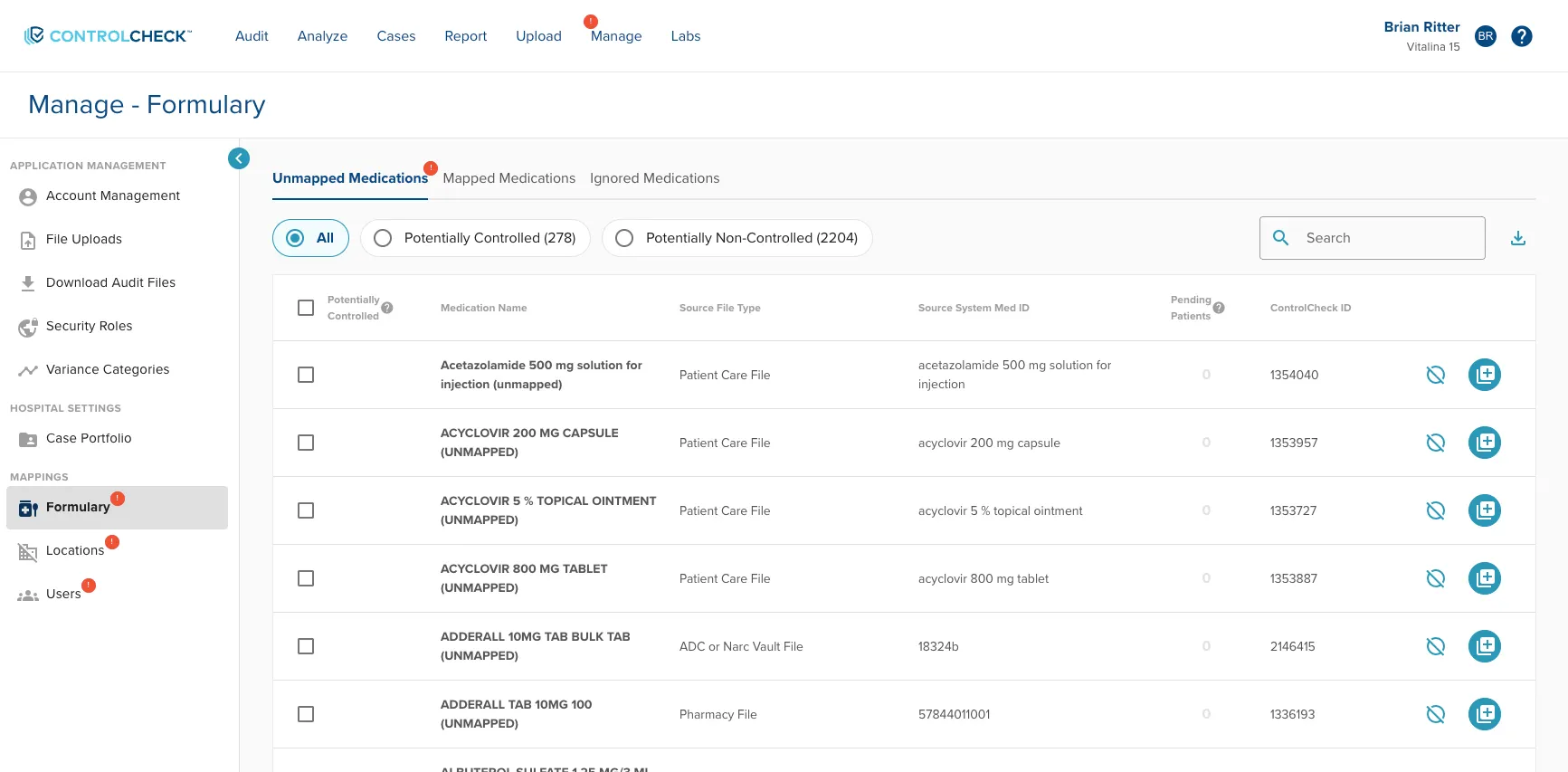
To begin, while logged into any hospital, navigate to the Formulary page from the Manage tab.
Here, you’ll find all unmapped medications available for decision making. Use the radio buttons or search bar to filter down by medication categories or a specific named drug.
- To Ignore a Medication: click on the Ignore Action button (light-weight circle with slash)
- When selected, users will be asked to confirm the action, then the medication will be moved off the Unmapped Medication list and into the Ignored Medications list
- To Map a Medication: click on the Map Action button (heavier weight circle with plus sign)
- When selected, the user will be taken to a new screen to determine how to map the medication (see next section)
Deciding Where to Map
Once the Map Action button is selected, below is the screen users will see. From here, ControlCheck surfaces similar drugs that might inform your decision on how to map your selected drug.
- Via the By Source System Med ID tab, ControlCheck displays drugs with the same medication ID that are mapped to other hospital locations within your system. This lookup respects security controls, thus only showing examples from other system hospitals that the user has access to.
- Via the By Partial Name tab, ControlCheck displays drugs with a similar name that mapped within the hospital you are currently logged into only.
- If you don’t like your choices, you may create a new mapping to a generic medication
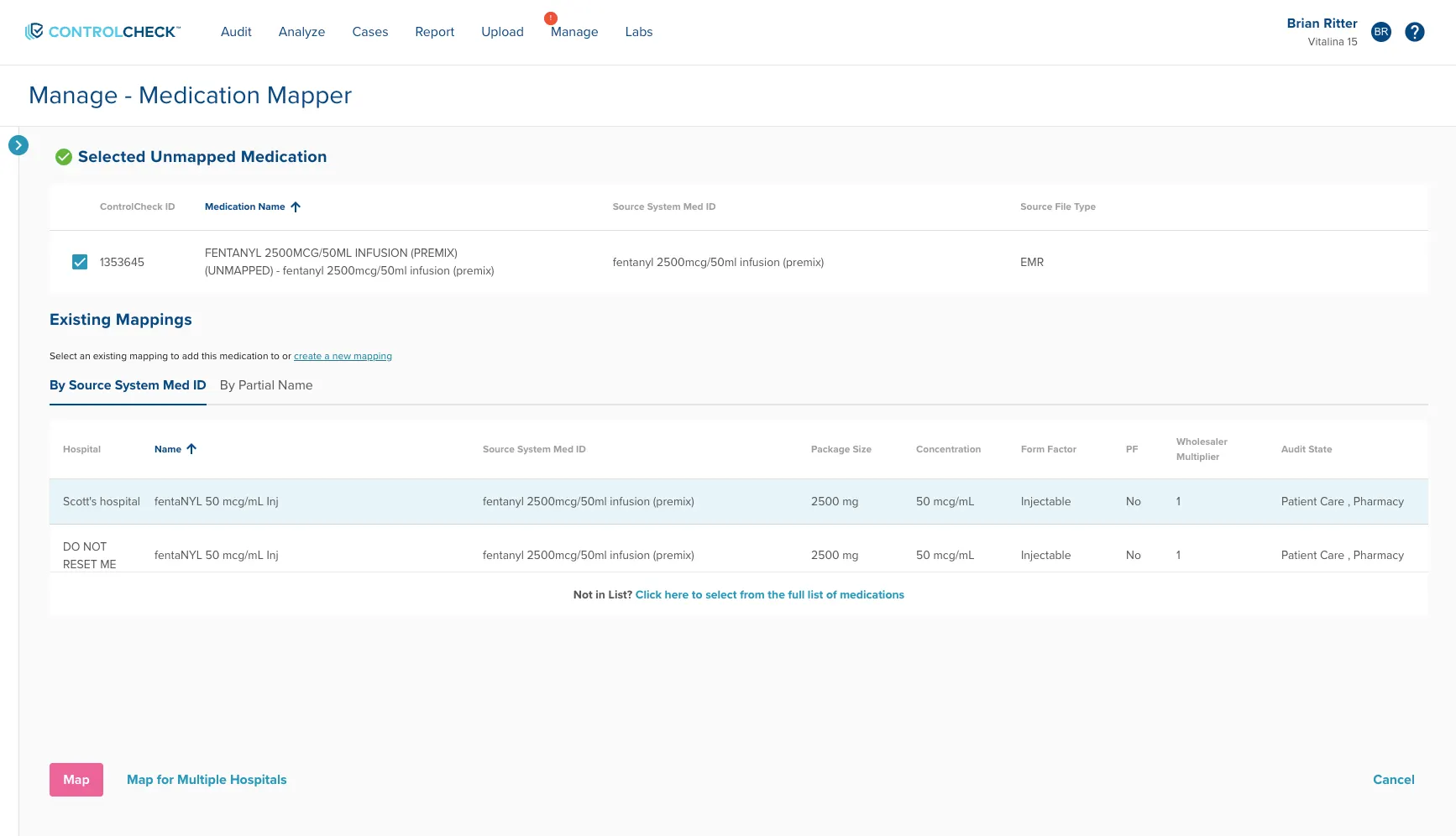
When you’ve found a suitable mapping destination, click on the row and then select:
- Map: Applies the mapping logic only to the hospital you are logged into
- Map for Multiple Hospitals: Applies the mapping logic to all hospitals or a selection of many hospitals that you have access to
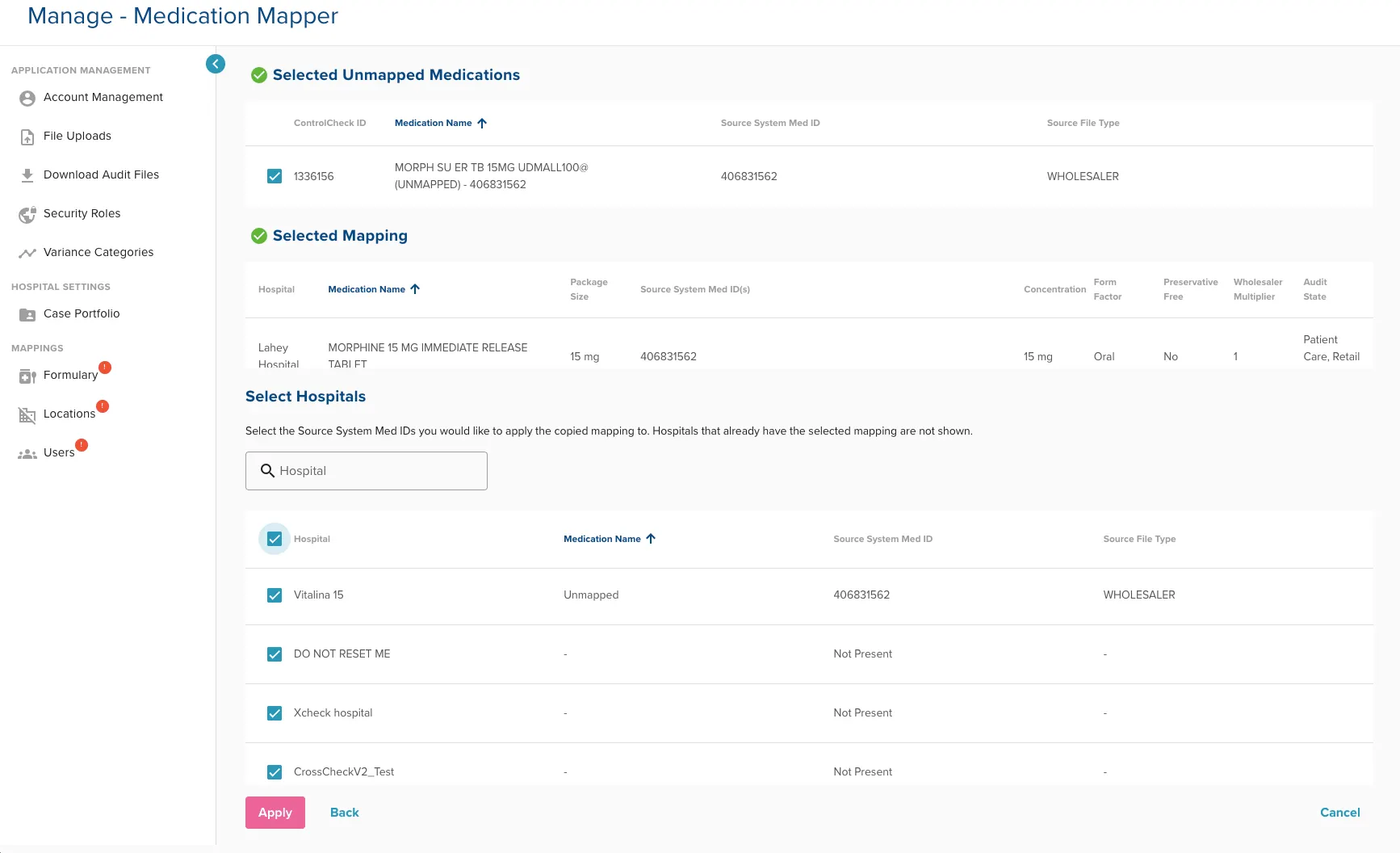
When mapping for multiple hospitals:
- Click the Checkboxes for each hospital you’d like to apply the mapping to
- Use the Bulk Apply Checkbox at the column header to select all locations within a single click
- Mapping to a hospital where the medication has never been present will “Pre-Map” the medication. This means, the moment that medication first appears in the other location, ControlCheck will apply the intended mapping, reducing your work burden.
When the mapping selection looks right, click Apply to confirm your selection.
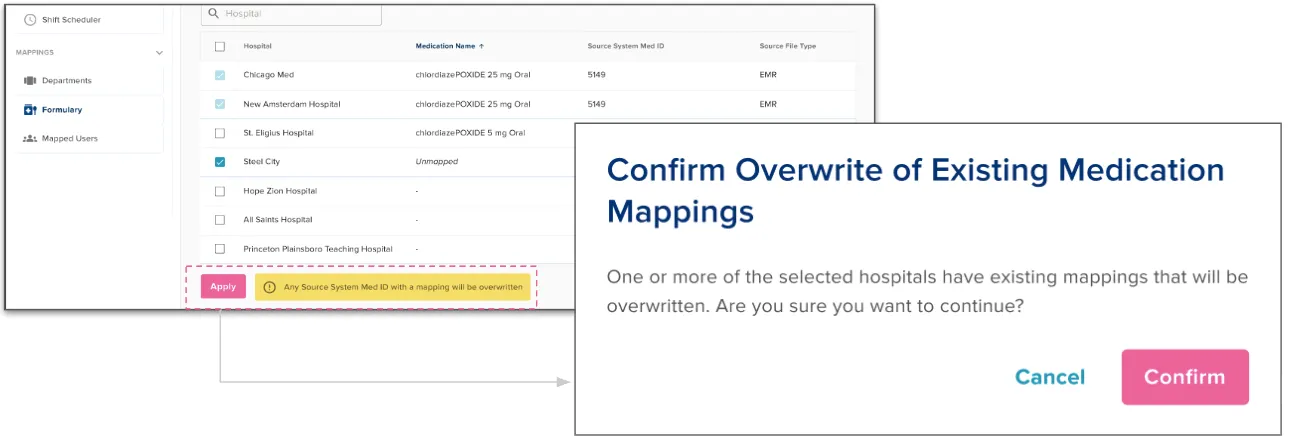
This Map for Multiple Hospitals page will allow you to overwrite existing mappings implemented at other locations. When ControlCheck senses this, users will be asked to confirm their decision to help prevent incidental mistakes.
Thanks for digging through this feature summary! But we’re not done helping you save time yet! We hope to bring more quality of life improvements to system management by the end of the year.
IRIS Update
We’ve removed the infusion sub-score from action times metrics.
- Due to the long hold times of infusions, we’ve found that infusion sub-scores for first touch/last touch negatively skew IRIS scores.
Bug Fixes
- We’ve adjusted the product to allow admins to create users that were previously deleted
- Fixed a bug where uploading a file and then adding a note to an Event Summary would bypass our PHI attestation control
Was this article helpful?
That’s Great!
Thank you for your feedback
Sorry! We couldn't be helpful
Thank you for your feedback
Feedback sent
We appreciate your effort and will try to fix the article