The Multi-Hospital Medication Mapping feature allows you to manage medications and establish a standardized formulary across many locations.
This functionality eliminates manual and repetitive mapping tasks and maintenance burden for healthcare systems with multiple facilities. It also minimizes mapping errors and inconsistencies across hospitals in a health system. This feature makes it easy to map medications across multiple hospitals simultaneously, apply existing mappings from one hospital to others in the system, and even pre-map medications at hospitals before the medication displays in that location.
To begin, access the Manage Tab within the main navigation menu at the top of the screen.

Within the Manage Tab, select the Formulary Dashboard from the menu on the left side of the screen.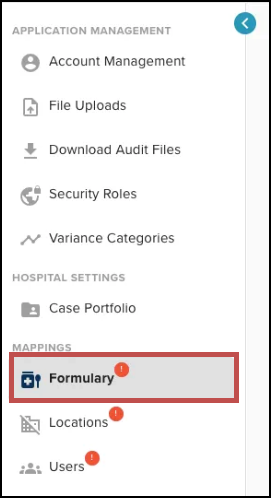
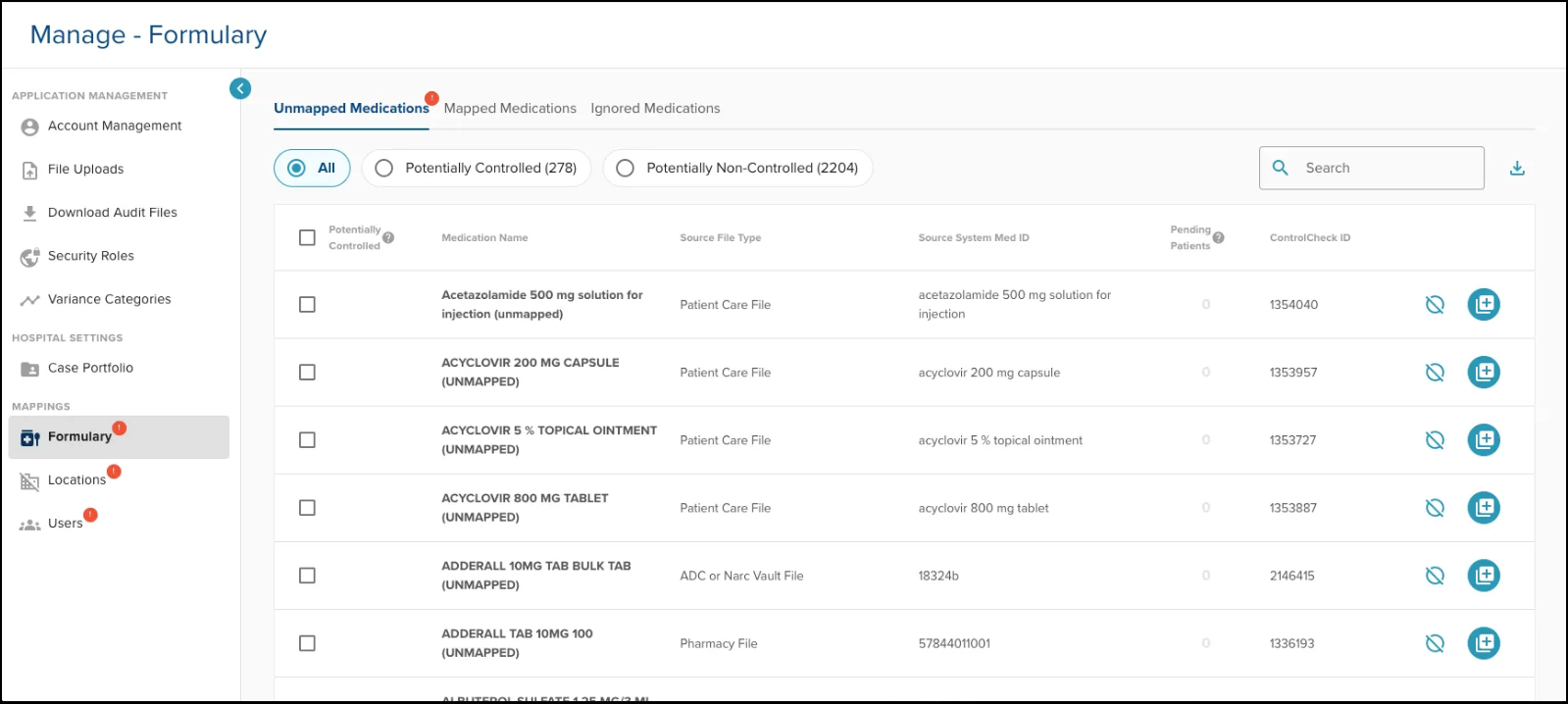
The Formulary will display all unmapped, mapped, and ignored medications within ControlCheck. You can view the various medications within each category by selecting the tabs available at the top of the dashboard. 
The Unmapped Medications tab will display all unmapped medications available for decision making. This is where ControlCheck will list unmapped medications that the application has identified from the data within your source system reports.
To map a medication to multiple systems, begin by identifying the desired medication from the Unmapped Medications Tab within the Formulary Dashboard. Select the Map Item button.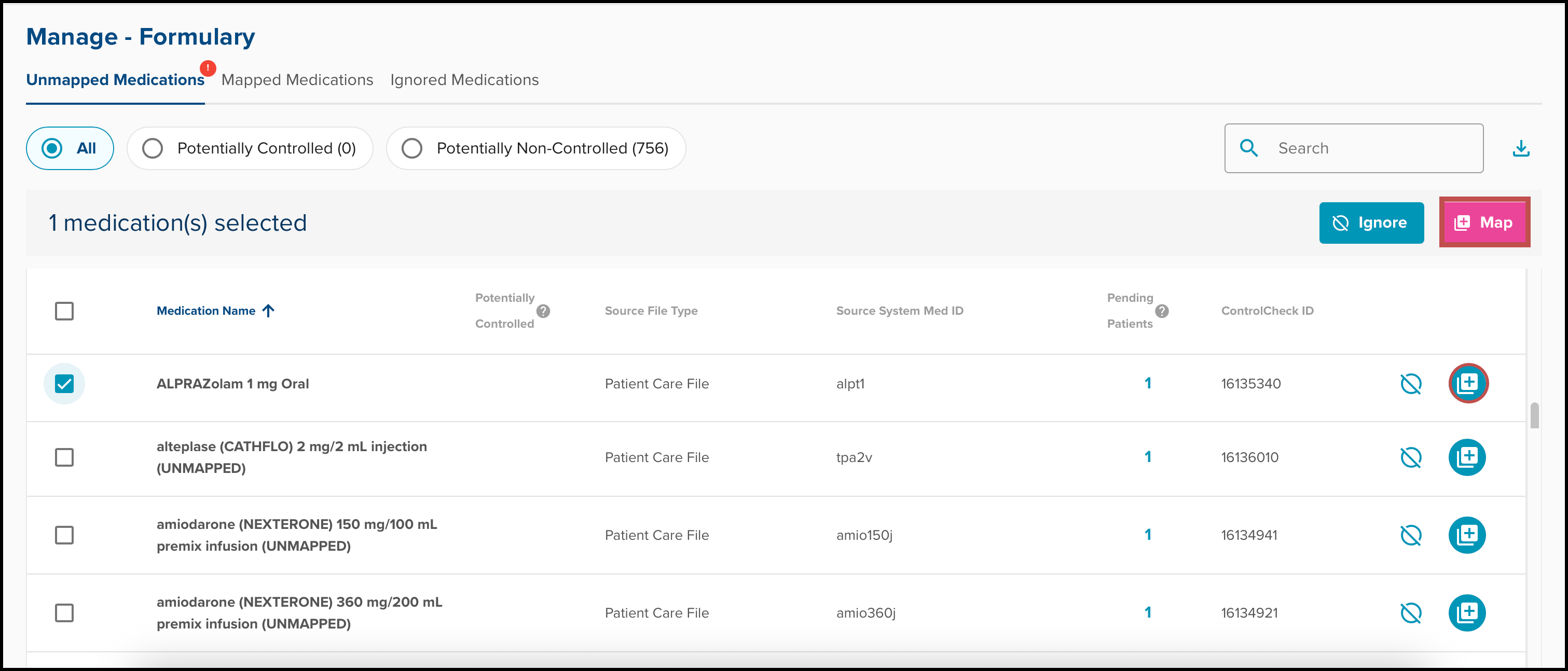
This will take you to the mapping dashboard. From here, ControlCheck will display medications they may be similar to the selected medication which may inform your decision on where to map.
The table below features two tabs: By Source System Med ID or by Partial Name.
Note: This screen does not display for a brand new medication. It will only apply when a medication is mapped at another site.
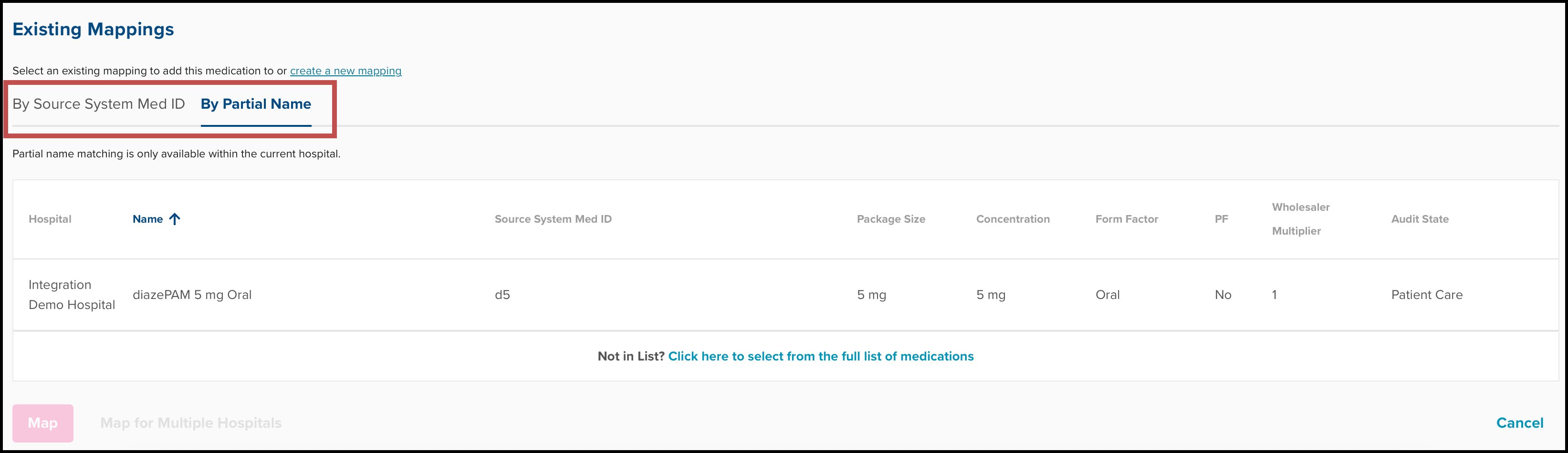 The Source System Med ID tab displays drugs within the same medication ID that are mapped to other hospitals within your system. This lookup will only display medications from hospitals that you have access to view, based on your individual user permissions.
The Partial Name tab shows drugs with a similar name that are mapped within the current hospital that you are logged into.
If there are no options listed in either tab, you can create a new mapping by selecting the "Click here to select from the full list of medication" button at the bottom of the panel.
After determining a suitable mapping destination, select the medication and select one of the buttons at the bottom of the screen. 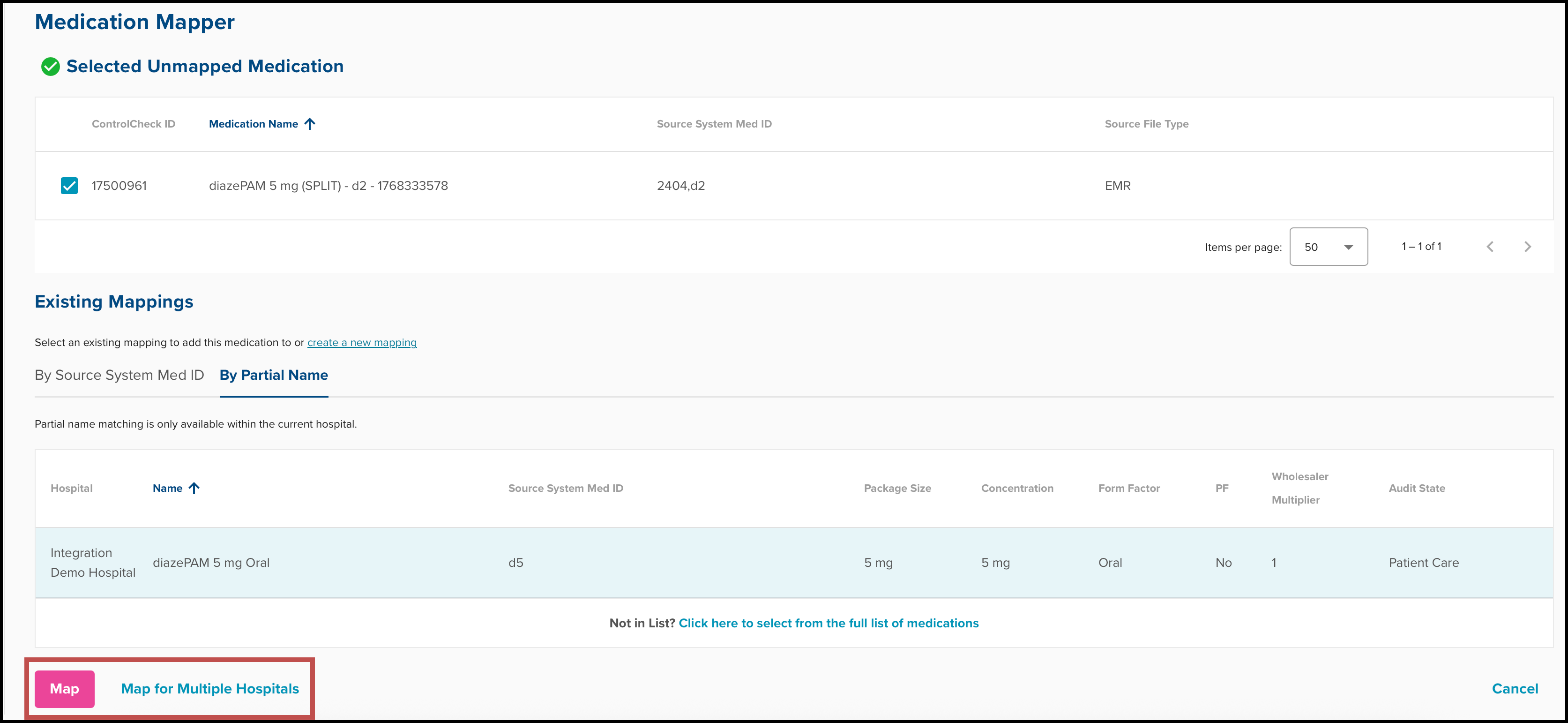
The Map button applies to the hospital that you are logged into.
The Map for Multiple Hospitals button applies mapping logic to all hospitals or a selection of many hospitals that you have access to view.
When mapping for multiple hospitals, select the checkbox for each hospital you'd like to map the medication to. Then select the Apply button.
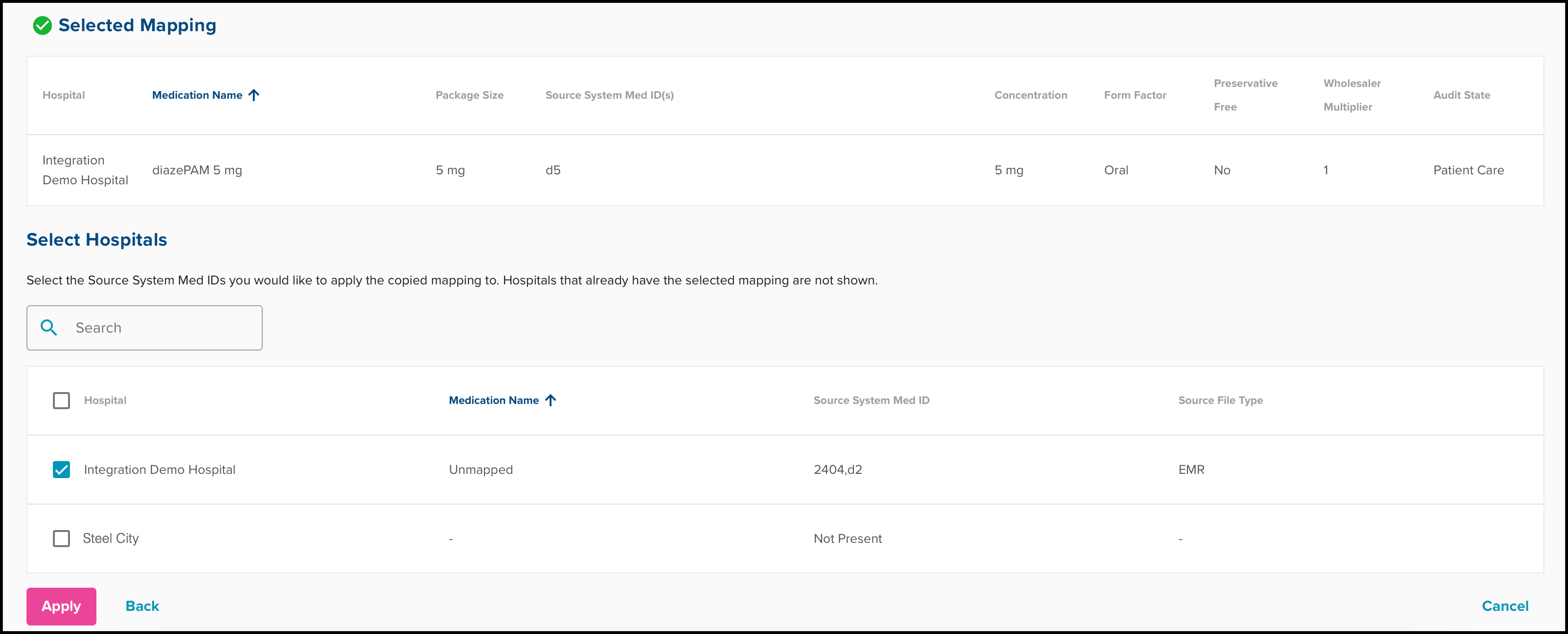
The Map for Multiple Hospitals page will allow you to overwrite existing mappings implemented at other locations. When ControlCheck detects this change, users will be asked to confirm their decision to prevent incidental errors in mapping.
Was this article helpful?
That’s Great!
Thank you for your feedback
Sorry! We couldn't be helpful
Thank you for your feedback
Feedback sent
We appreciate your effort and will try to fix the article