The Related Events and Event Editor icon allows you to further investigate an open variance by pulling in all of the surrounding event summaries for a specific patient. 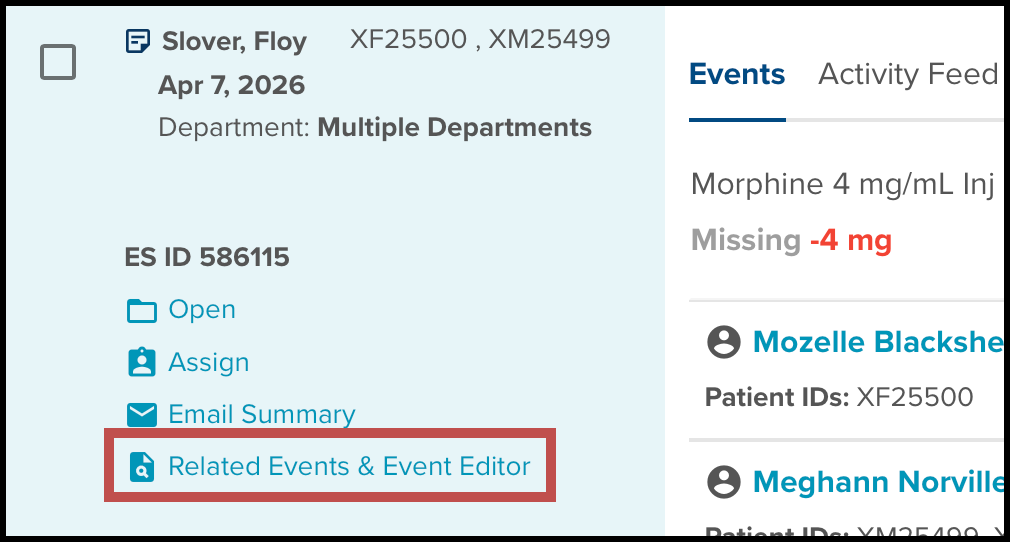
This includes events involving the same provider and multiple medications. The icon is located within the left-hand menu of an expanded patient card. Selecting the icon triggers a new pop-up window that displays any related event that has occurred 24 hours before or after the current event. 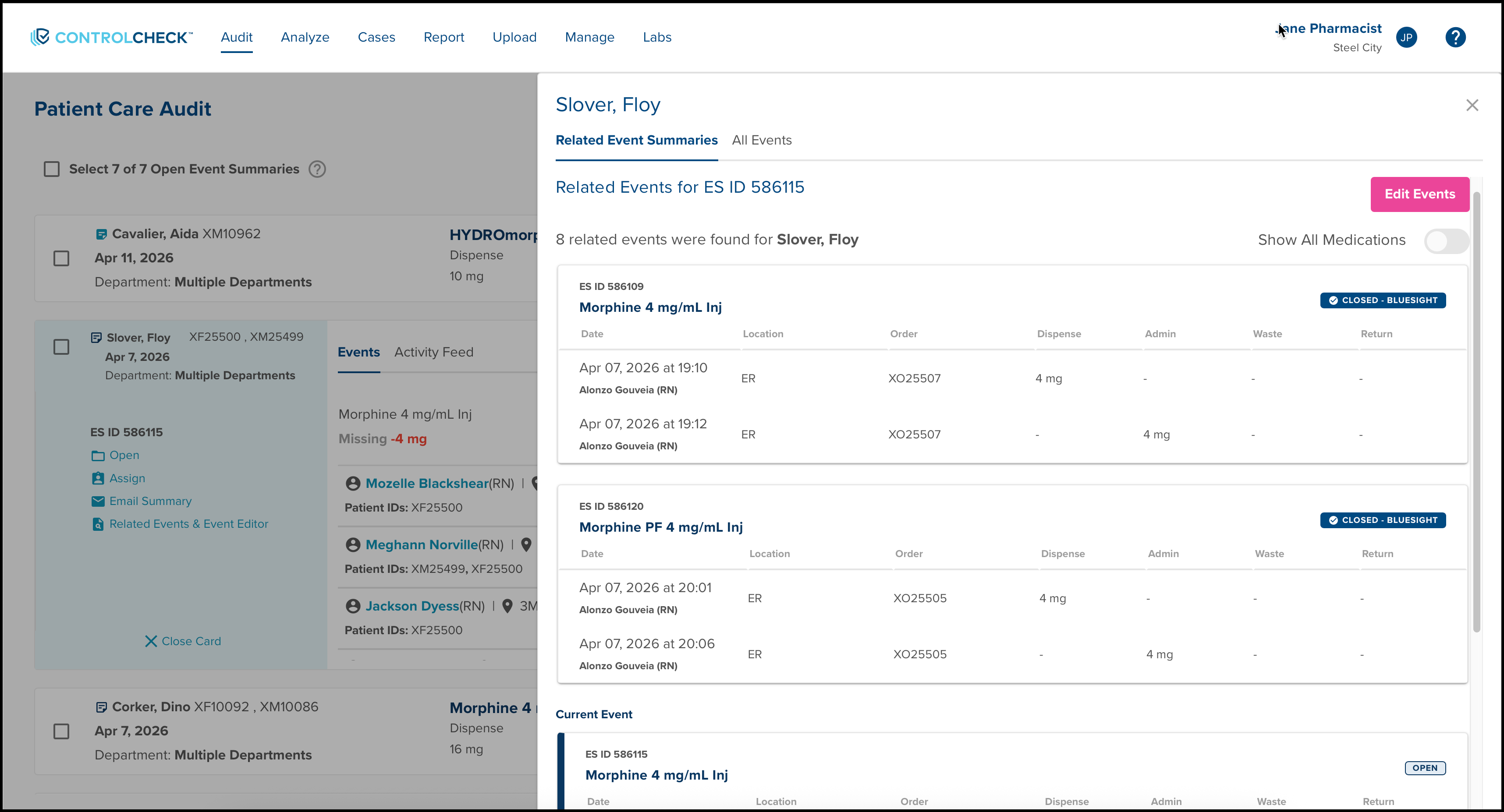
In the Related Events window, you can review any related Event Summary card regardless of the departments involved. Overall, the Related Events feature offers a comprehensive view of the patient’s activity allowing to you easily identify and rectify any discrepancies or false variances.
Show All Medications Toggle
In the upper-right corner of the Related Events window, you'll notice the "Show All Medications Toggle".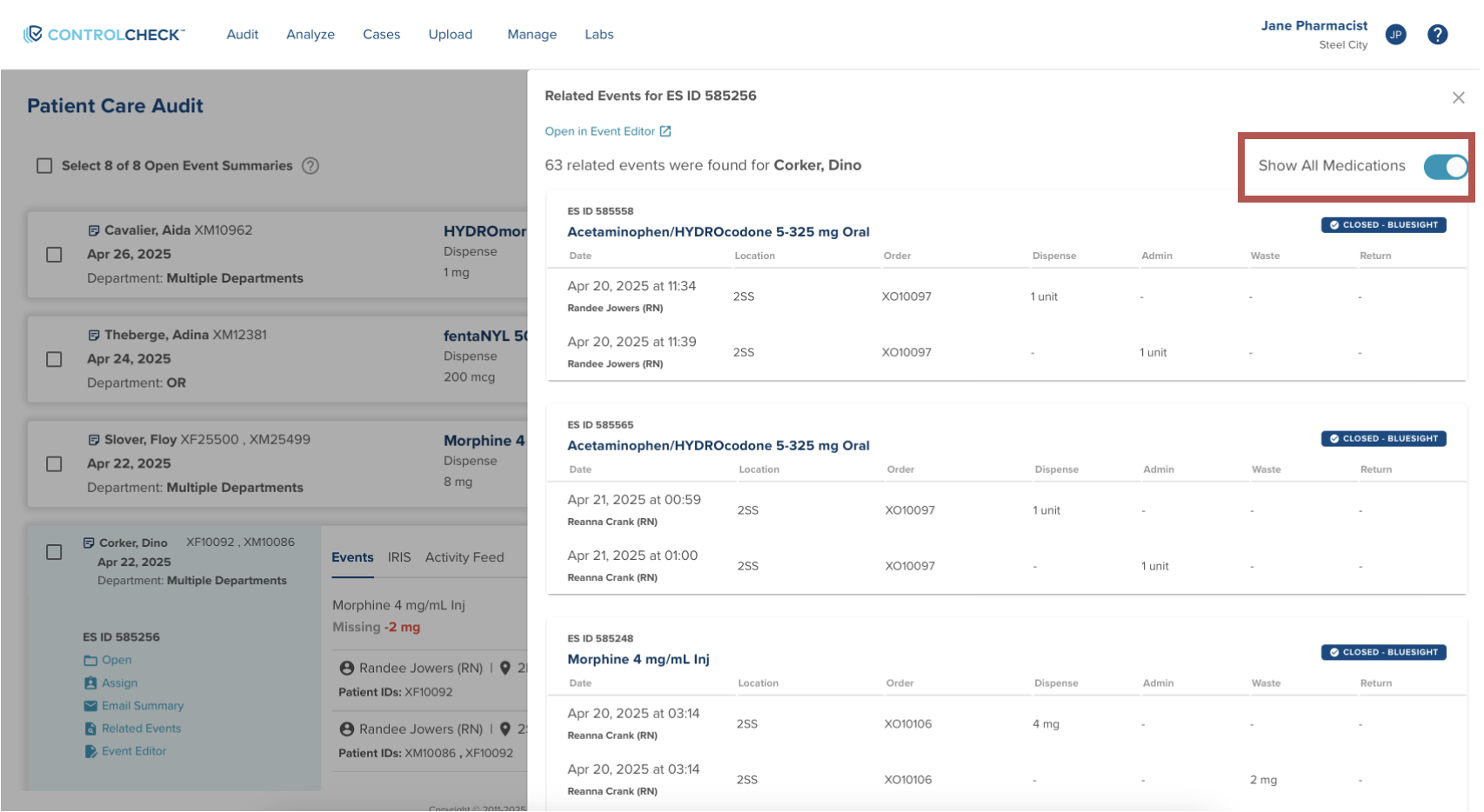
By turning on the "Show All Medications Toggle", ControlCheck will include related events that pertain to different medications associated with the patient.
While scrolling through the window of related events, you'll notice that the current event is also highlighted.
All Events Tab
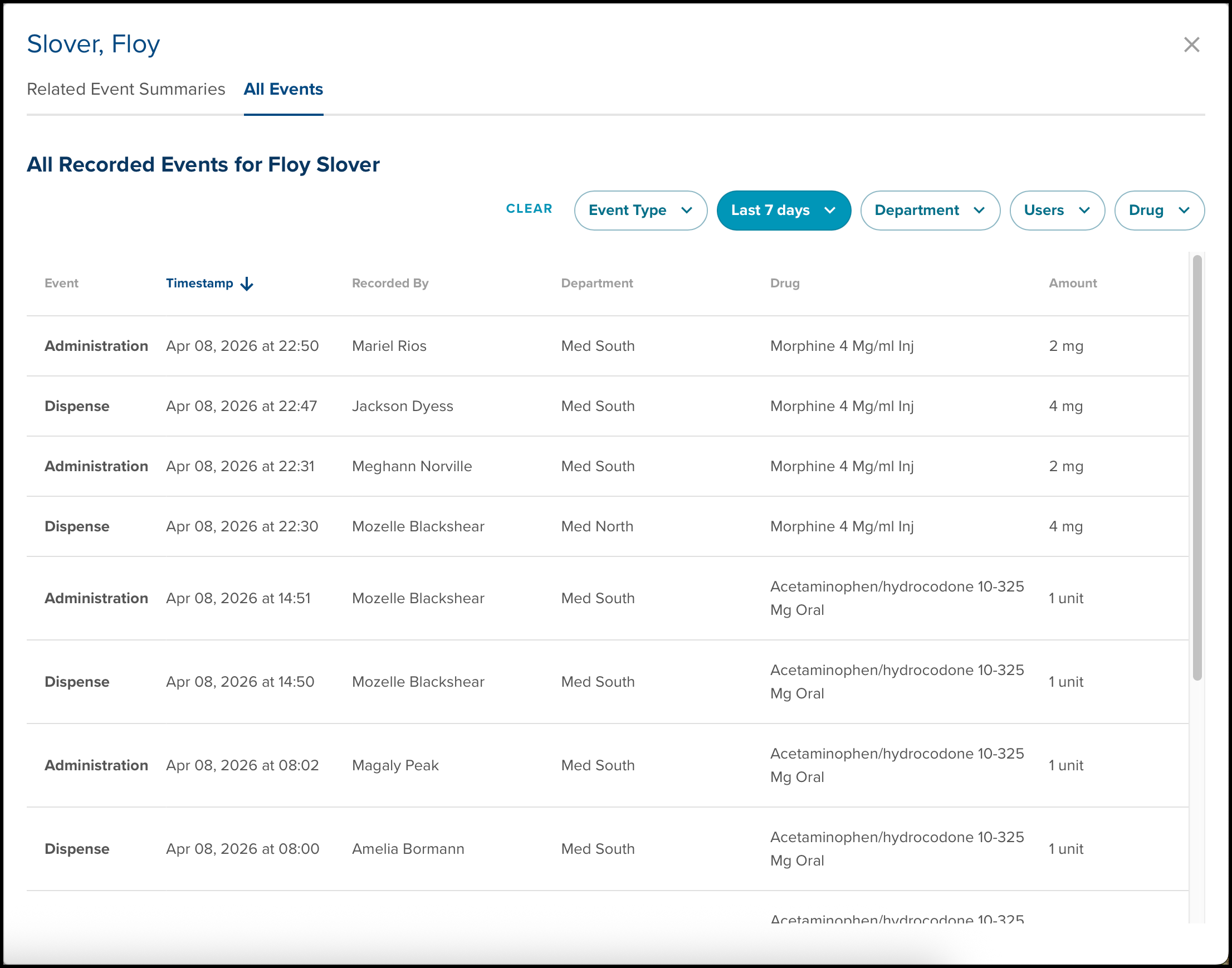
The All Events Tab allows you to review all events associated with the selected patient.
Reviewing Related Events on the Audit Table
Step-by-Step Instructions:
- Navigate to Audit tab and select "Review Audit" to access the Audit Table.
- Utilize the table's filters to locate the desired Event Summary card.
- Review the patient and variance information.
- Select the Event Summary card to expand it.
- Select the Related Events icon to trigger the Related Events window.
- Turn on the "Show All Medications" toggle to review related events involving all medications.
Example Scenarios
There are a couple of different scenarios and workflows the email notification feature can support:
1. A hospital has nurse managers who have access to ControlCheck but frequently need to be poked by upper management and pharmacy staff to log into ControlCheck and address their department’s variances. This feature allows pharmacy users or manager users to assign the event summary to the nurse manager, which will trigger an email notification to the nurse manager, letting them know they have open variances to address that
have specifically been assigned to them.
2. A hospital has a diversion committee or team of auditors that work in ControlCheck simultaneously and frequently overlaps work among auditors by mistake. This feature could support this use case by allowing the auditor to assign the summary to themselves to take ownership of the variance. This allows other auditors to ensure they are not picking up variances with someone already assigned to them and working on them.
3. A hospital has a workflow where they require nurse managers to leave a comment on an open event summary, but the nurse manager cannot close the event summary. Once the nurse manager has left a comment on the event summary, the auditor has no visual indication that the comment by the nurse manager has happened because the notepad on the audit table turns blue once any comment is made. A customer has asked that we color change the notepad to indicate a comment has been added to the event summary by the nurse manager, but this feature will address the main concern: knowing that the event summary is ready for “you” the user. The auditor can assign the event summary to the nurse manager, then the nurse manager can leave their comment, and assign the event summary back to the auditor. Both users are notified of their assignments and called to action into ControlCheck.
Event Editor
The Event Editor feature allows users to easily find events that match within a larger event summary and regroup those events together to close them. This feature provides users the ability to break down a single event summary in any status to multiple event summaries and/or create new summaries.
To access the Event Editor feature, select 'Edit Events' on the right-side of the Related Events Panel.
The Event Editor displays the corresponding transactions involved in this event. Here, you can select and regroup events that may reconcile. These events will be moved to a new event summary.
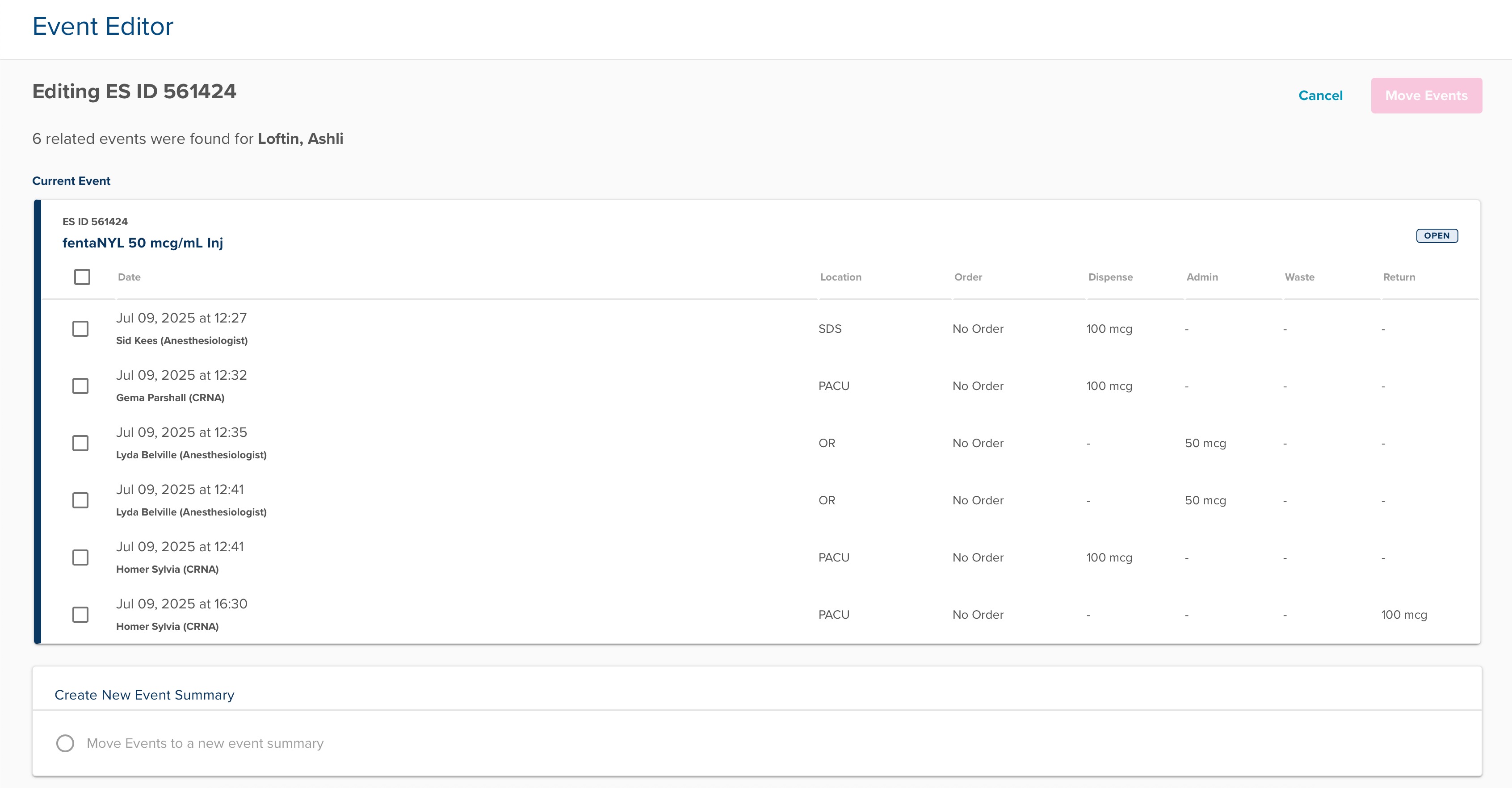
To begin, click the checkbox on the left to select each event. 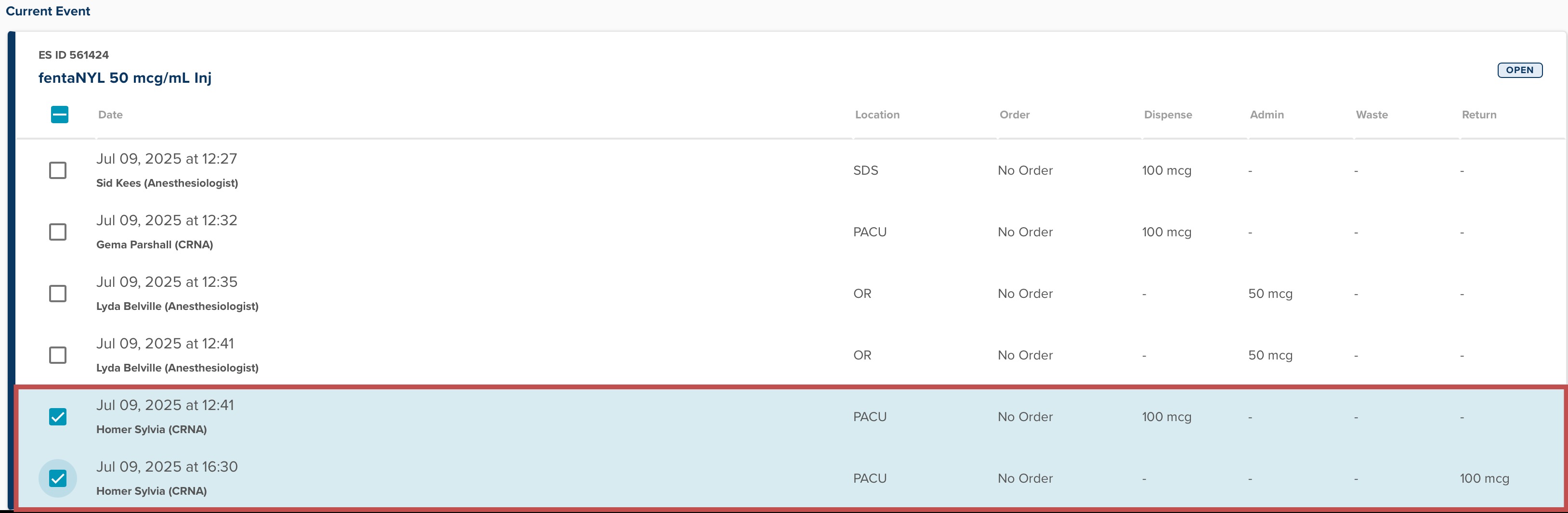
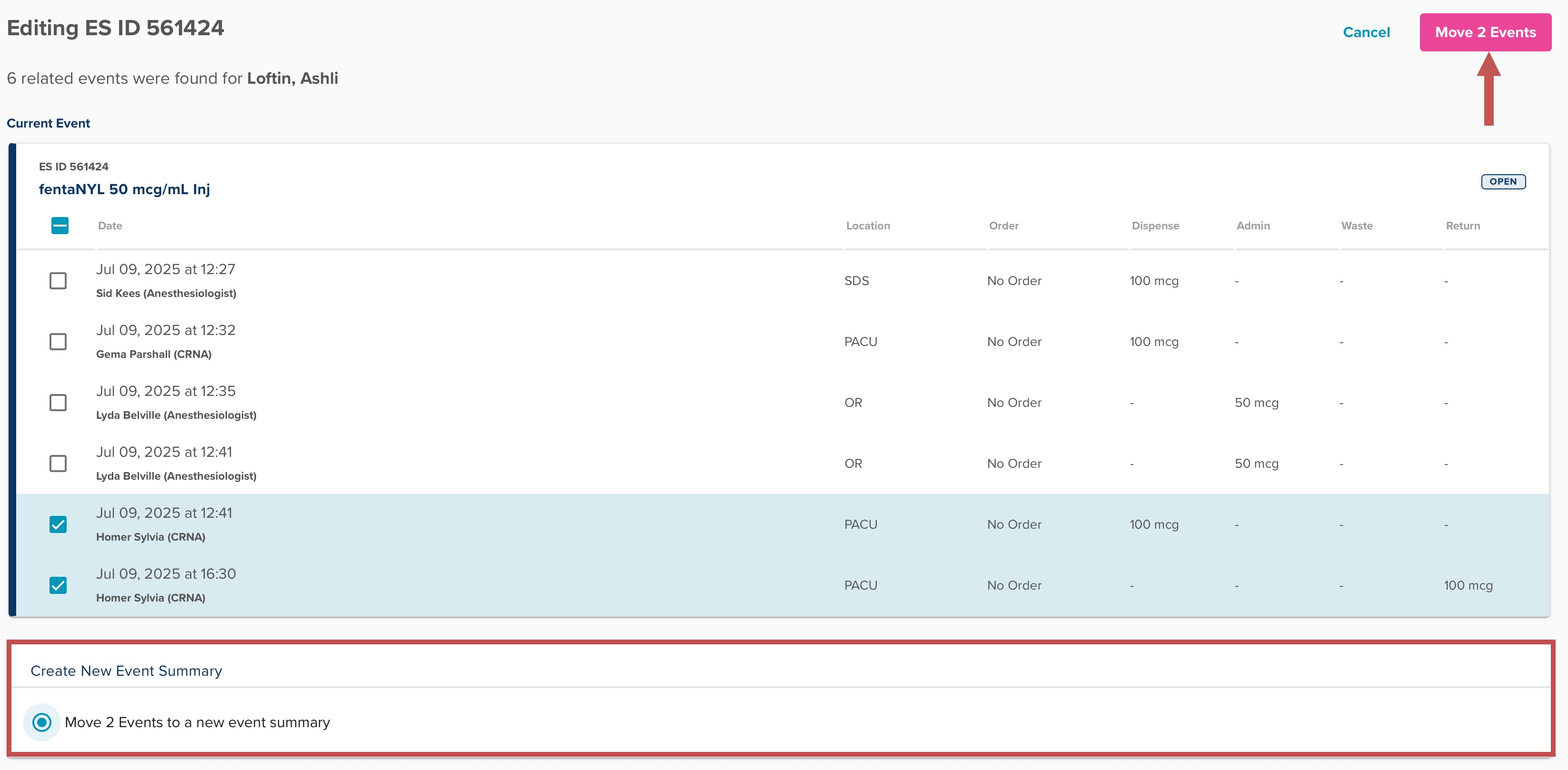
Then, select 'Move 2 Events to a new event summary' from the panel at the bottom of the screen. The pink 'Move 2 Events' button in the upper right corner will become actionable, allowing you to move the two events to a new event summary.
The 'Review Event Changes' window will display, where you can review the selected events and enter a note to provide further context for the event reconciliation. Once you have reviewed your changes, click 'Regroup Events' to finalize your selections.
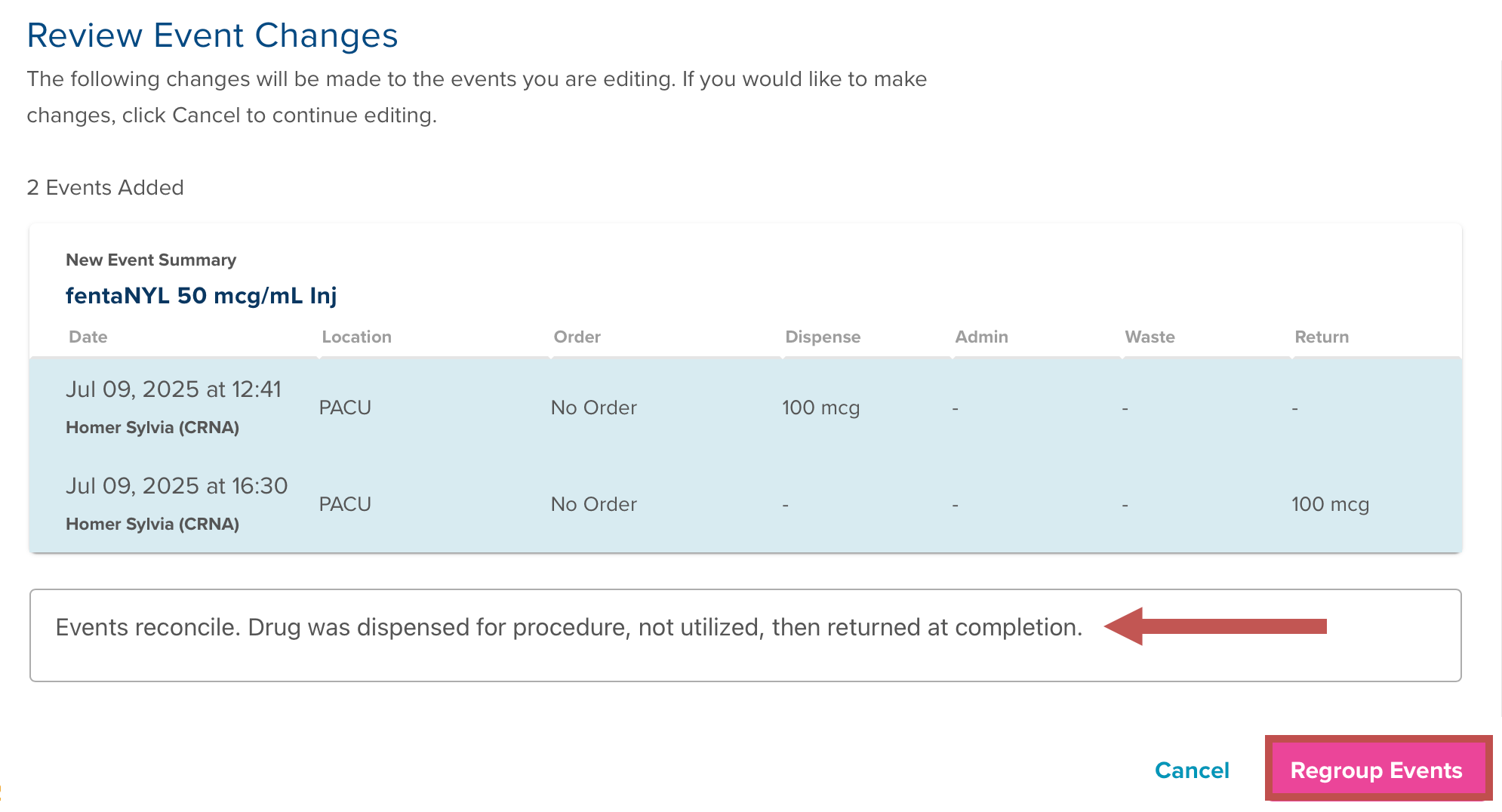
This now regroups the events to a new event summary.
Was this article helpful?
That’s Great!
Thank you for your feedback
Sorry! We couldn't be helpful
Thank you for your feedback
Feedback sent
We appreciate your effort and will try to fix the article