Dashboard Layout
Within our Analytics, the IRIS Worklist highlights users whose behavior is anomalous compared to their peers. This is accomplished by looking across metrics that have been shown to relate to diversion behaviors.
In ControlCheck, IRIS stands for Individual Risk Identification Score.
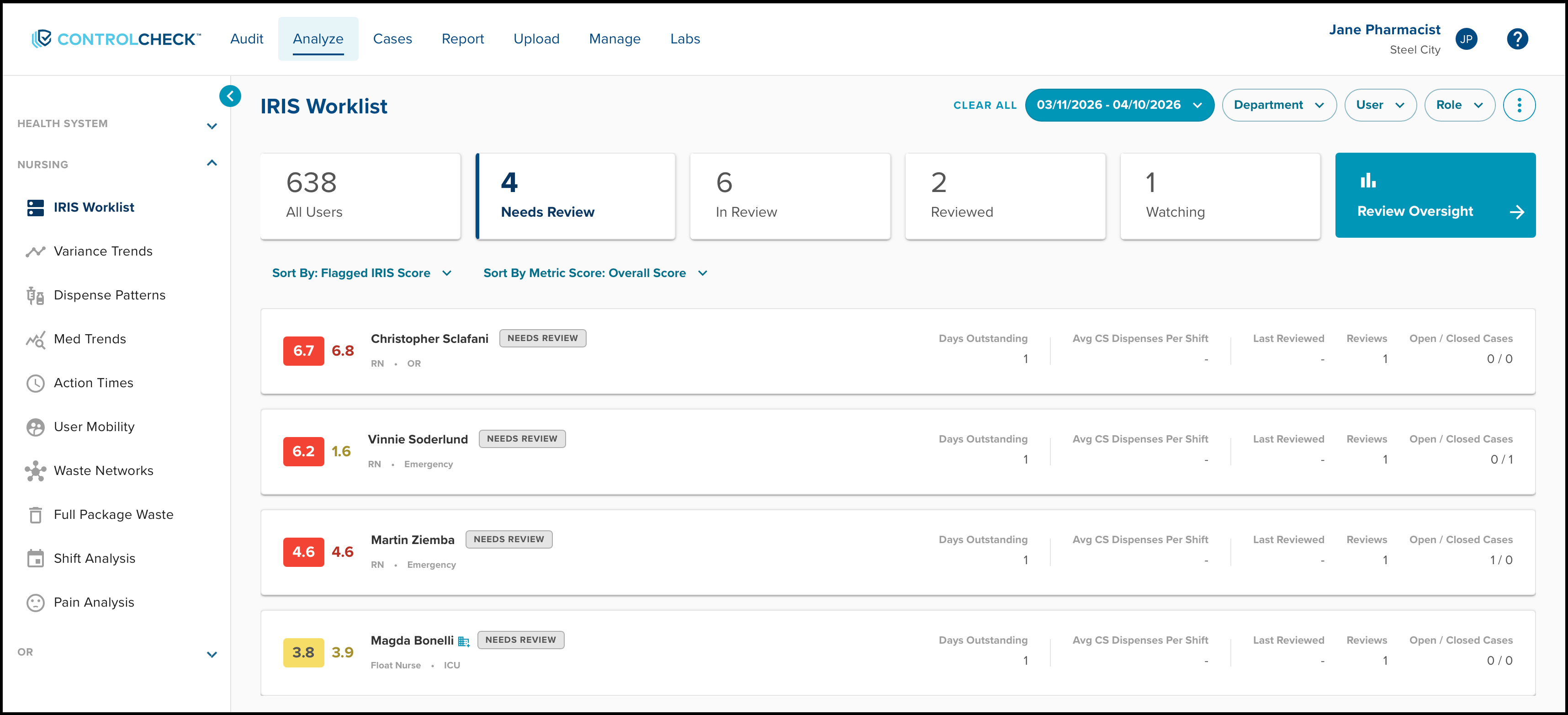
Filter Options
The main filters located in the top right of the dashboard include the Date Range, Department, User, and Role.
There are also a variety of options available for Sorting.

Please note: When the Department Filter is selected within the IRIS Worklist, it will update the users' Current IRIS Score to reflect the IRIS Data in the selected department. This will exclude the IRIS activity in other departments.
This changes the user's score from the Hospital IRIS Score to the selected Department IRIS Score on the IRIS Worklist. The Department IRIS Score is calculated by comparing a user's transactions with peers in the selected department.
There are a series of status tabs at the top of the dashboard that act as filters for your data. Each status tab hosts a plethora of provider cards organized into one of the following statuses:
- All Users - displays provider cards for all users regardless of their status or IRIS
- Needs Review - displays provider cards for users whose data needs to be reviewed
- In Review - displays provider cards for users whose profile is actively being reviewed
- Reviewed - displays provider cards for users whose analytics have already been reviewed
- Watching - displays provider cards for users that are being monitored for potential diversion
To learn more about flagging users and user reviews, read the IRIS Worklist - Flagging Users article.
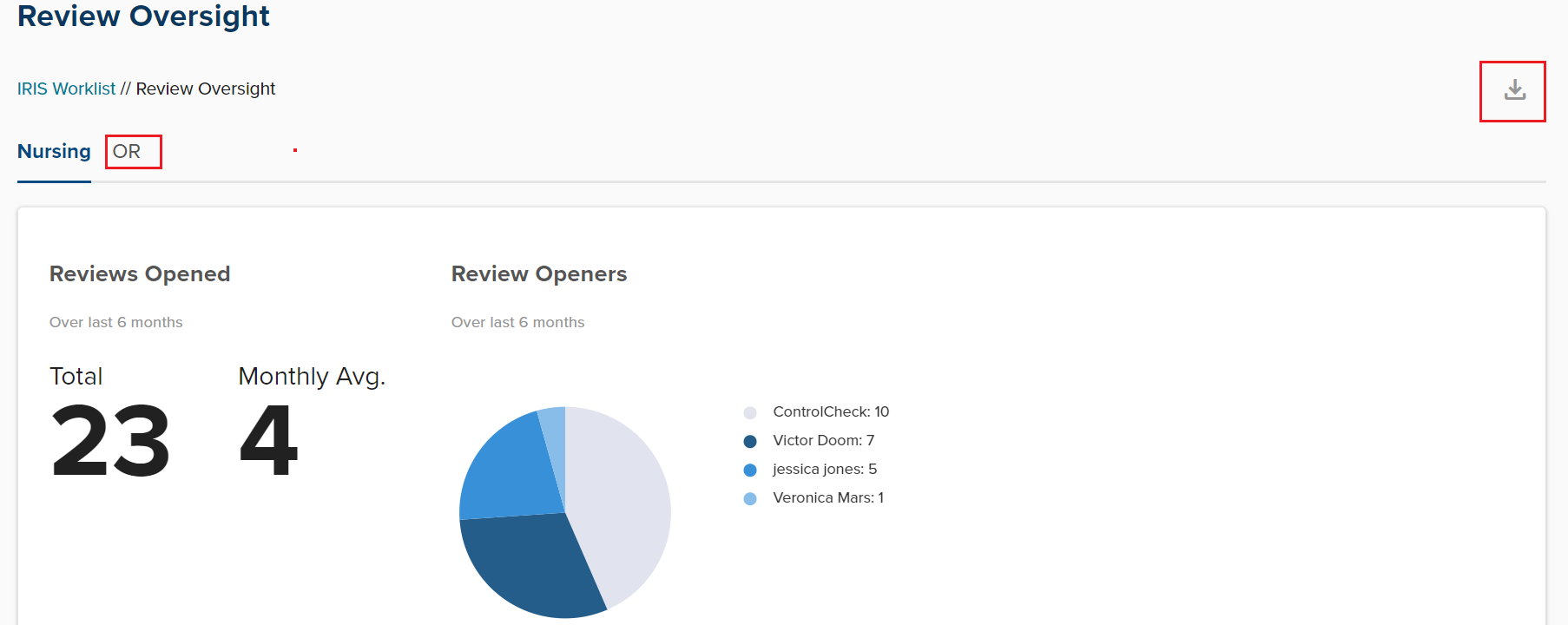
Review Oversight Panel
To the right of the Status tabs is the Review Oversight Panel which aggregates all of your facility's data regarding IRIS reviews that have occurred within a time period of one to six months. This panel breaks down the data and displays it in a series of graphs that cover the following topics:
- Total reviews opened - as well as the monthly average
- Review openers - displays the names of users who have opened reviews
- Total reviews opened monthly
- Total reviews completed - as well as the monthly average of reviews completed
- Review outcome - outcome concluded as policy non-compliance or diversion suspected
- Total reviews completed monthly
- Avg days to complete a review
- Users watched
- Total reviews opened & completed by a department
- Avg days to complete a review by department
- Reviews completed on IRIS user role
- Review completed by application user
This panel has two dashboards: one for the Nursing module and another for the OR module (if enabled). There is also the option to download a screenshot of the data displayed. However, do keep in mind that the data used to populate the charts are determined by a user's existing department permissions.
Provider Card Layout
Let's examine the photo of a collapsed provider card for the user Christopher Sclafani, a registered nurse, who normally works in the OR department.

At first glance, you can easily see the provider's full name, IRIS, role, and department.
The current IRIS score is located to the right (see screenshot above) and is the provider's dynamic score based on the last 30 days. This helps to compare with the Flagged IRIS score to quickly identify users with increasingly risky behavior. This IRIS score changes daily, can appear red, green, or yellow, is displayed for flagged and unflagged providers, and represents the provider's most recent activities/risks.
To the left of his current IRIS is his Flagged IRIS Score, which is displayed within a red square. The Flagged IRIS Score is the provider's static score at the time ControlCheck opened an IRIS review. It helps prioritize reviews and focus on reviewing flagged IRIS metrics. This IRIS score does not change, it is only displayed for flagged users, and represents a provider's flagged activities/risks.
Note: Both flagged and current IRIS scores are calculated with the same IRIS date range lookback.
This provider card was located under the All Users tab and has been assigned the Needs Review status. Each provider card is labeled with a status tag allowing you to quickly audit users without utilizing the main filters.
To the right of the card, you can review a snapshot of the following analytics:
- Days Outstanding - the no. of days a user has an open review / This is only displayed for users with an active review.
- Avg CS Dispenses Per Shift - a user's controlled substance dispensing activity per shift in the last 30 days.
- Last Reviewed - the last completed IRIS review date
- Reviews - the total no. of completed IRIS reviews
- Open/Closed Cases - the no. of open and closed cases
Selecting a provider card opens the IRIS Detail Panel on the right side of the screen. This panel allows you to complete a variety of tasks related to user reviews.
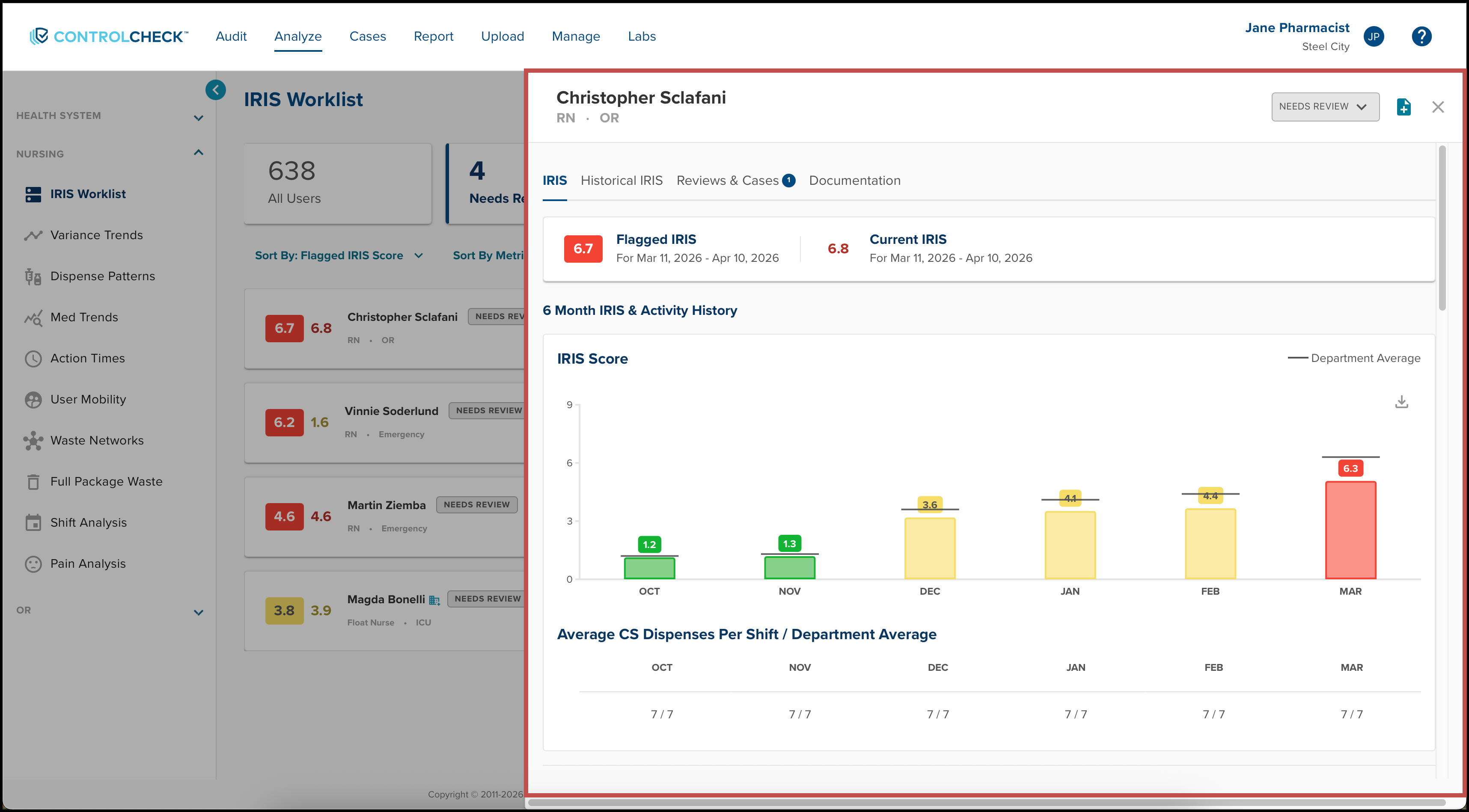
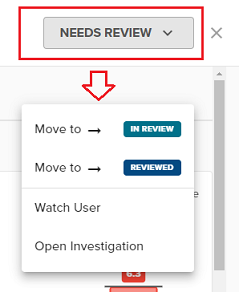
You'll immediately notice that the Needs Review tag in the upper right corner of the IRIS Detail Panel. Selecting this tag reveals a clickable dropdown menu that allows you to change the status of the card or open a case.
You can easily change the status of an active review by moving it backward and supporting more accurate tracking and collaboration across different review statuses. This enhancement allows for correcting reviews that have been prematurely moved and enables additional scrutiny of reviews.
There is also a Watch User option in the dropdown menu which when selected will prompt you to select one of the following reasons the user should be watched:
1. New Employee/Transfer Monitoring
2. Peer-Reported Behavior Monitoring
3. Staff Education Adherence
4. High CS Exposure Monitoring
5. Other - Choose this option and then enter a custom reason in the text field.
The system will prompt you to add a note before changing the provider's status to "Watching".
Currently, you can transition IRIS review statuses from:
- In Review to Needs Review
- Watching to In Review
- Watching to Needs Review
The expanded card will be divided into four tabs: IRIS, Historical IRIS, Reviews & Cases, and Documentation.
IRIS Tab
The IRIS tab will include the same 6-month IRIS and Activity History graph and the Detailed Risk Score Analysis.
The 6-Month IRIS & Activity History allows you to see trends over time. This helps understand the user's behavior and any significant changes by reviewing the bar graph. Each of these bars represent a month timeframe for that user and their IRIS score during that time frame. 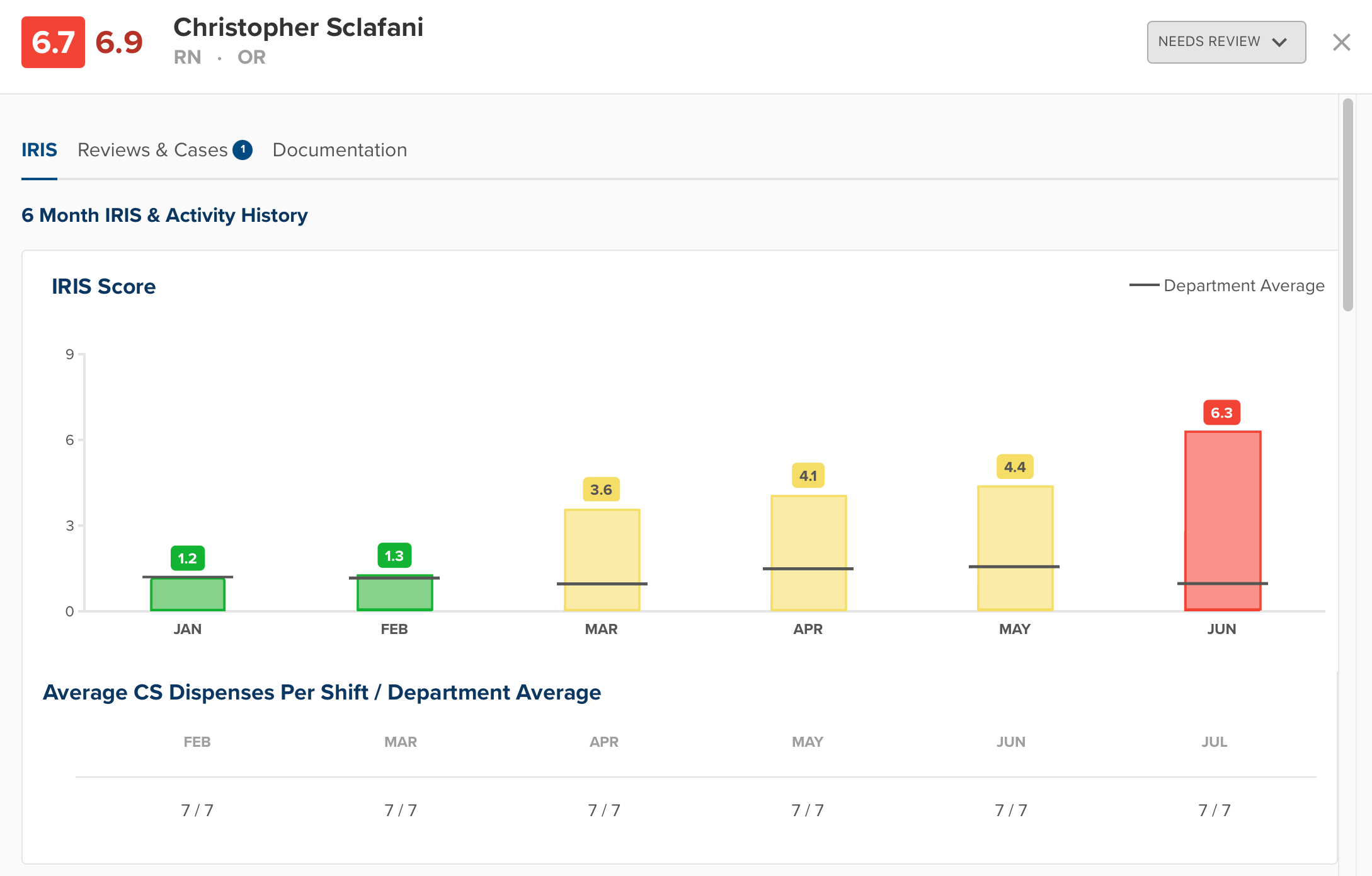
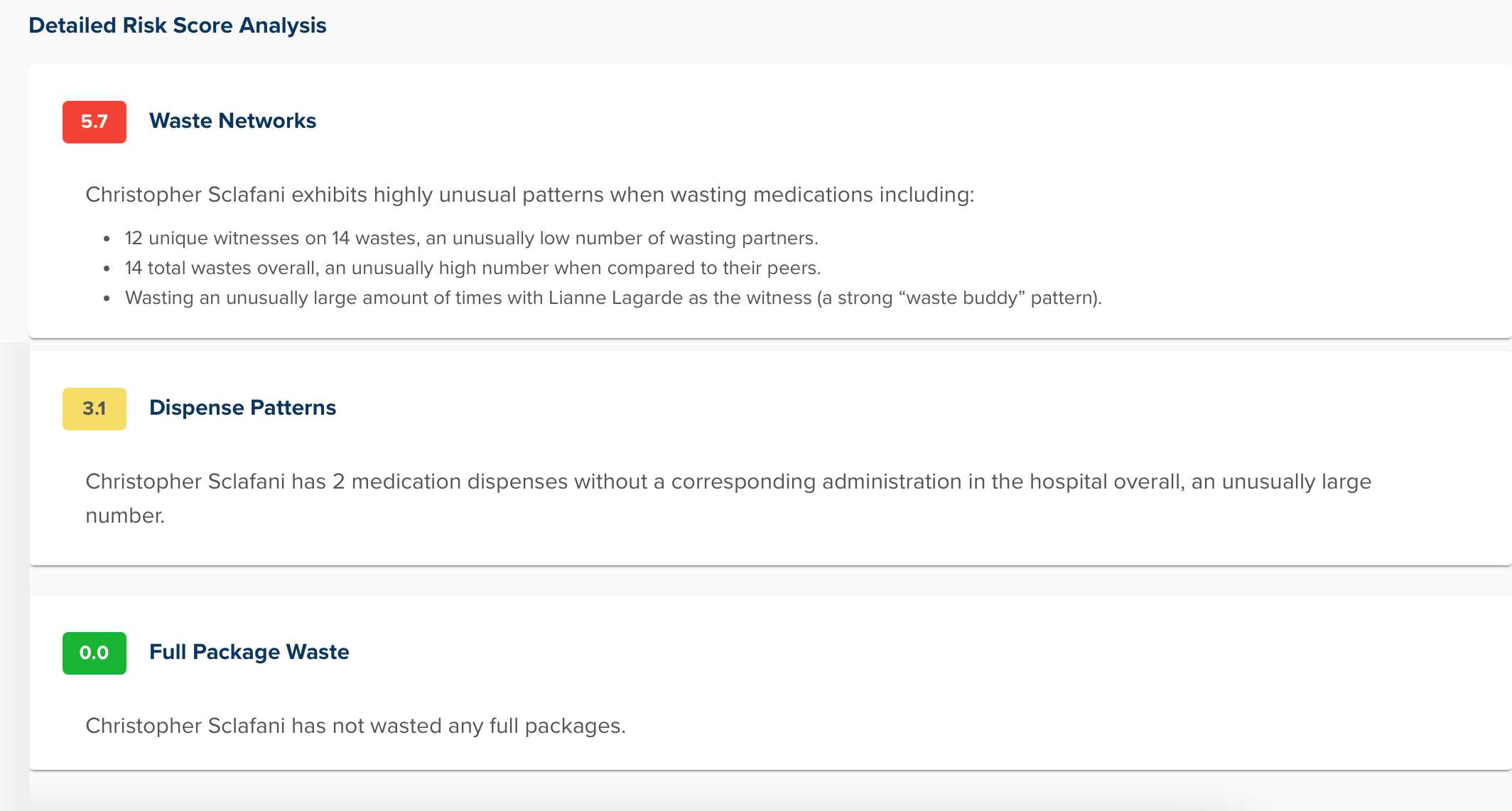
The Detailed Risk Score Analysis will display the IRIS scores across all of the different metric dashboards. Each of those metrics generates its own score that goes into a user's overall IRIS score. This list shows the metrics that are factored into the overall score and provide a brief description of each score.
The Date Range filters allows you to filter your view of the IRIS scores and metrics based on a specific timeframe. You can also select one of the two options Flagged Date Range and Current Date Range. The Current Date Range shows the last 30 days by default. However, you also have the option to select the flagged date range which will show the IRIS metrics and scores generated when the provider was flagged.
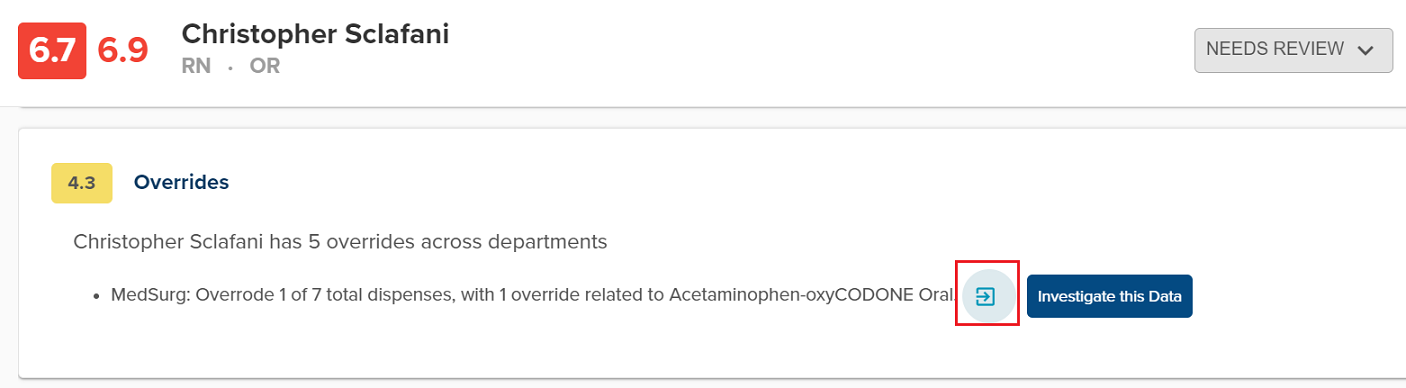
To access each metric's dashboard for the selected provider, hover your mouse over the name of the metric and click the blue arrow that appears. Some metric descriptions will include an additional link to the metric's Investigate Data page where you can review all of the events associated with the data.
Investigate Data Page
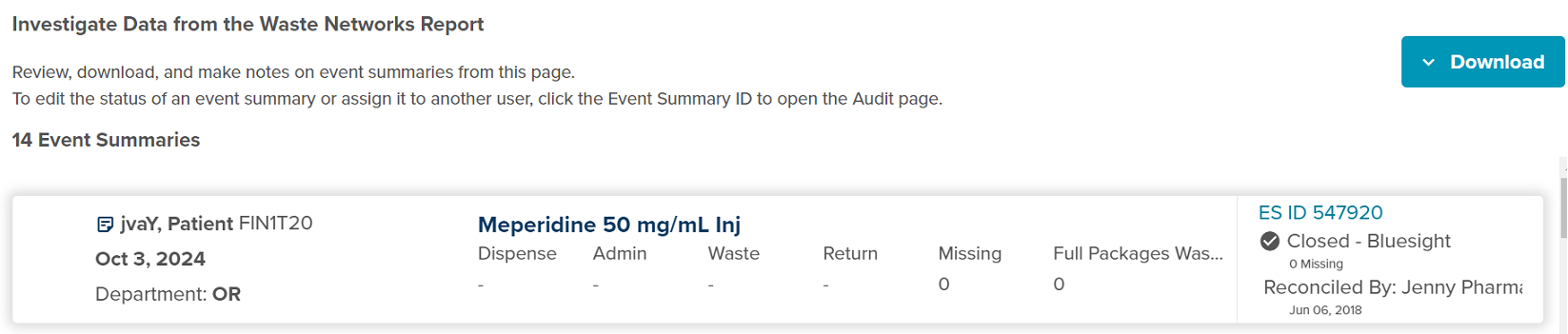
In order to improve the usability of the Investigate Data page we have recently added the following contextual data:
- IRIS User Name
- Flagged/Current Date Range
- Total Count of Event Summaries/Events
You can also perform the following actions:
- Utilize a toggle view to review all IRIS metric data within the specified data range
- Navigate directly to the IRIS metric's report page for data exploration
Additionally, we have incorporated a popular user suggestion so that the list of event summary cards will always appear in chronological order on the Investigate Data page.
Historical IRIS Tab
The Historical IRIS Tab allows you to review IRIS data for a specific time period. This allows you to review the user's behavior patterns over a specific period of time to gather more information. After selecting a date range, the user's IRIS score during that time period will display. Their Detailed Risk Score Analysis for the selected date range will also appear below.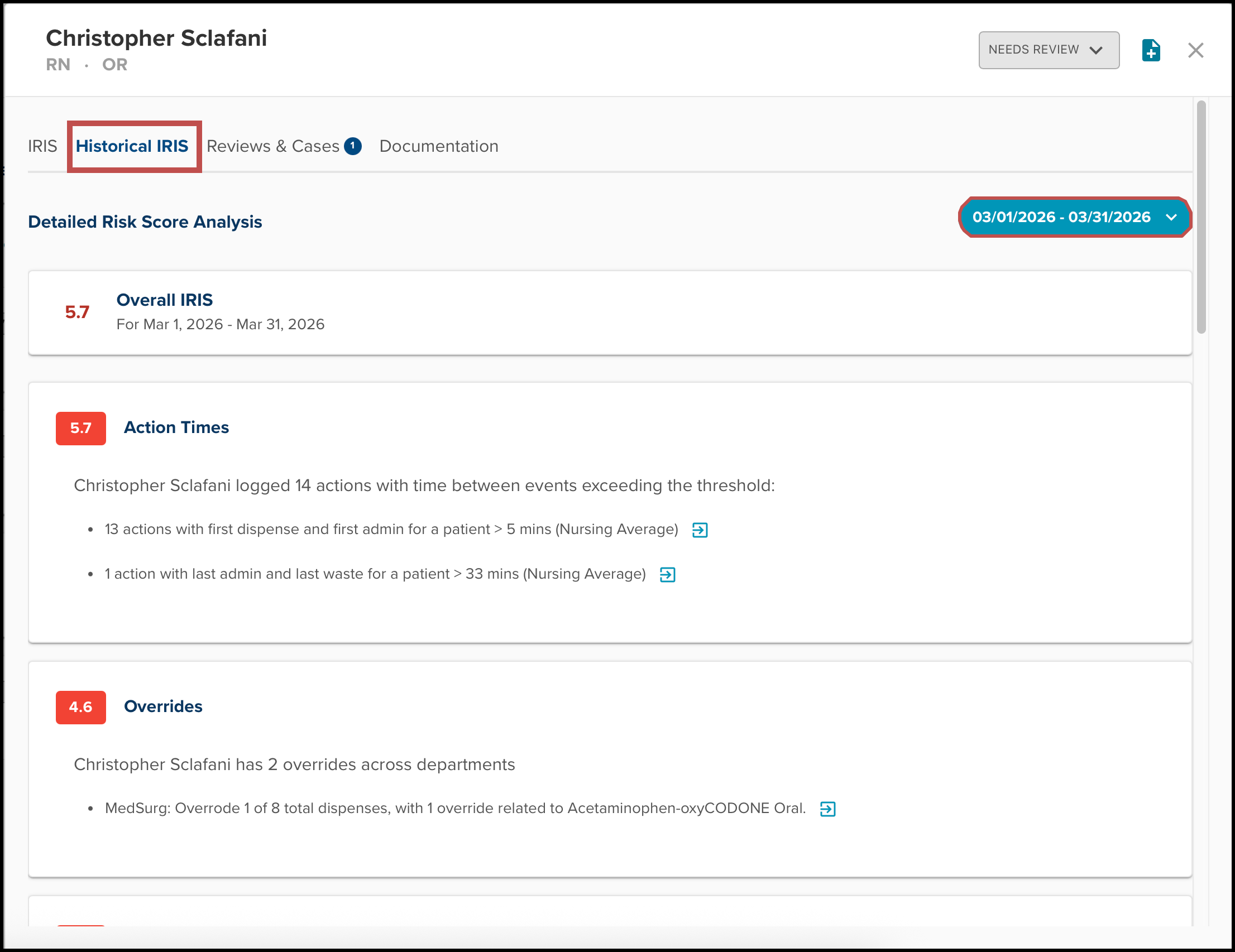
Reviews & Cases Tab
The Reviews & Cases tab displays a record of open and closed cases for the selected provider. When reviewing open cases you can select the Carrot icon to quickly review any notes or status updates attached to the case. Each case listed will include information regarding its status, the flagged IRIS score, the open date, the close date, the open reason, and the outcome of the case.
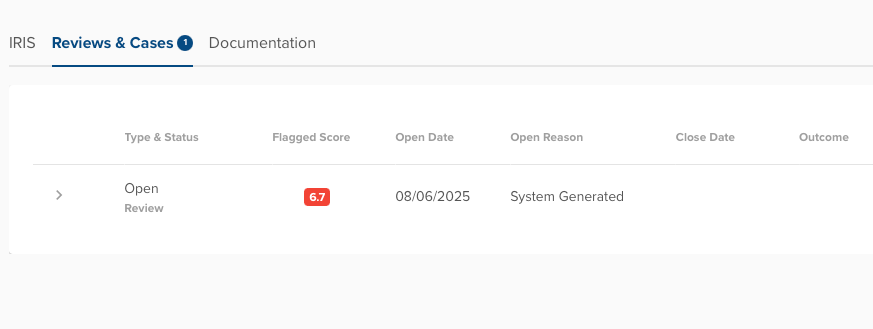
To review a case listed, you can select the case and ControlCheck will forward you to the provider's Case Portfolio page.
Documentation
The Documentation tab serves as a log for all status updates and documentation associated with a specific provider.
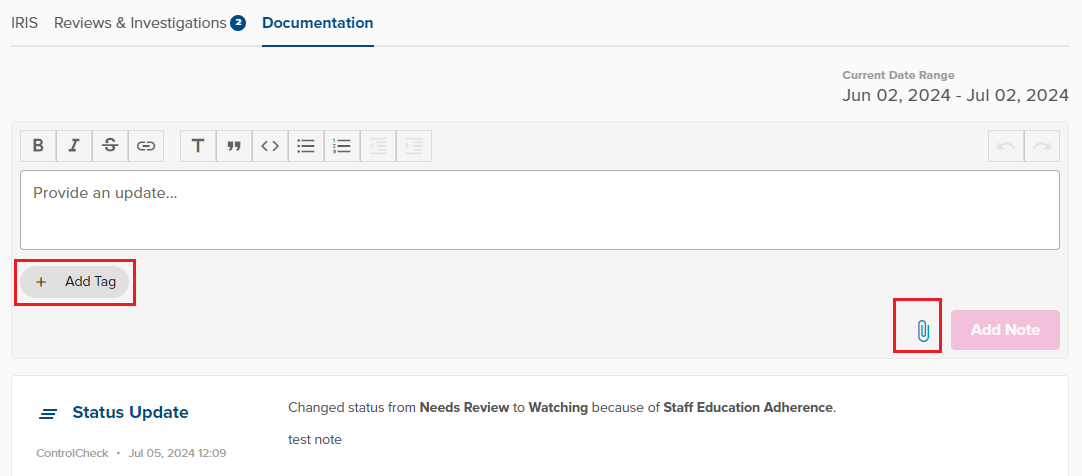
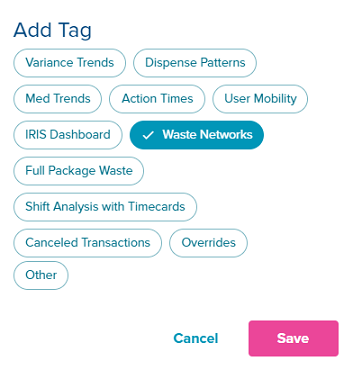
You can create new notes and even apply relevant tags when utilizing its' text field. To add a tag to a note, select the Add Tag icon, and select the tag you wish to add. To upload documentation select the Paperclip icon next to the Add Note button, and attach any relevant files from your device.
Was this article helpful?
That’s Great!
Thank you for your feedback
Sorry! We couldn't be helpful
Thank you for your feedback
Feedback sent
We appreciate your effort and will try to fix the article