Features
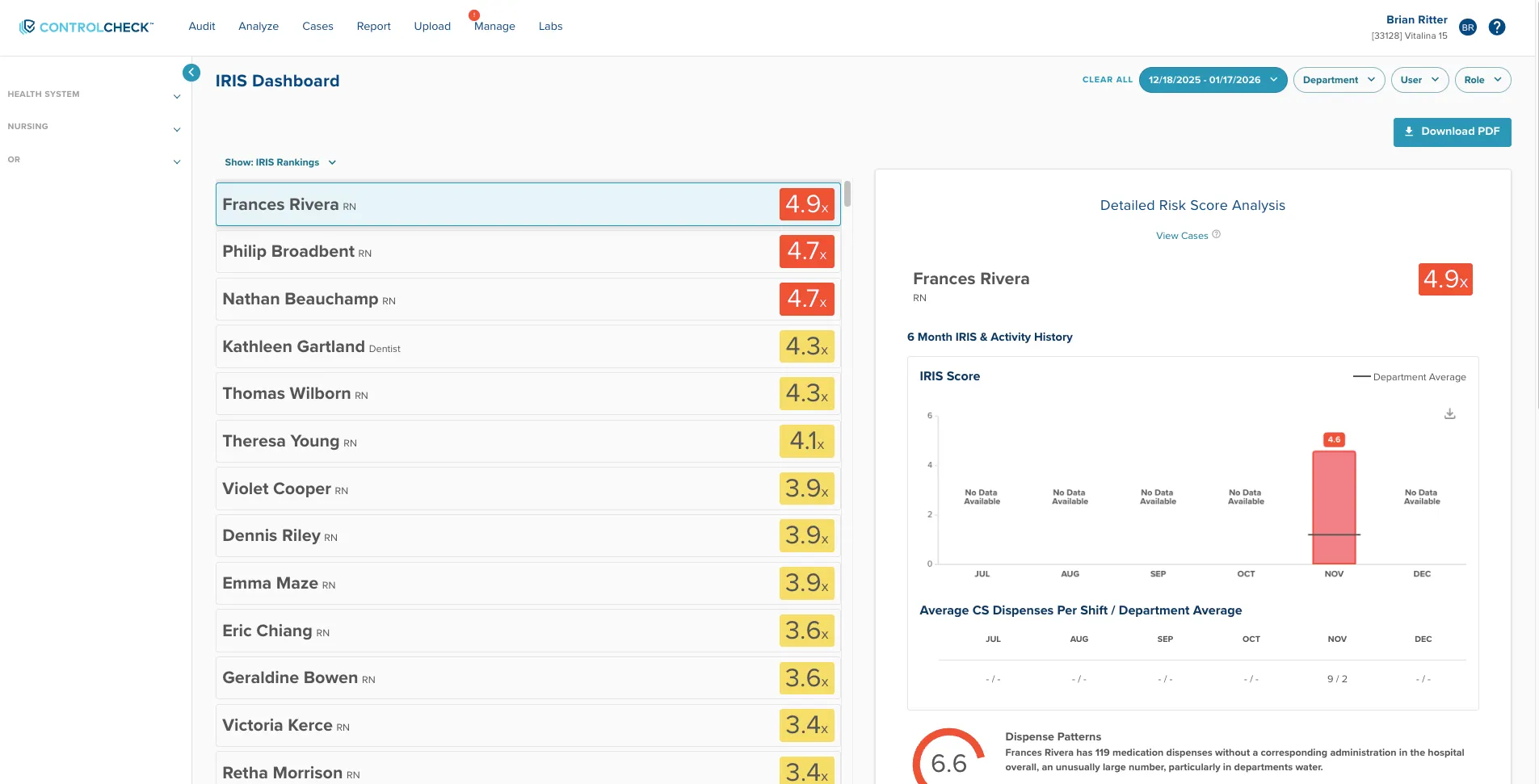
IRIS Detailed Risk Panel
Several new enhancements are here with the IRIS Detailed Risk Panel! Ever wanted to quickly see the transactions that make up the evidence of your IRIS Review? Have you experience reviewing a users IRIS score but wanted to see their score over a longer period of time? Or wanted to see what their IRIS score was between their Flagged and Current score?
Key Benefits Include:
- Added ability to navigate to Transactional Reports directly from the Detailed Risk Panel. The Transactional Report will be automatically run with the Provider selected. The date range will also be set depending on where you navigated from.
- Patient Care Audit Table -> hospital default IRIS 30 day range
- Cases -> hospital default IRIS 30 day range
- IRIS Worklist -> date range on the page / Current IRIS Score range
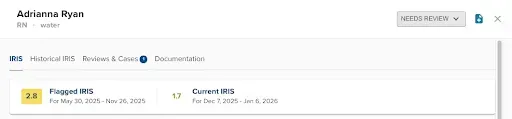
New icon in the upper right hand corner of the Detailed Risk Panel provides opportunity to navigate to a pre-run Transactional Report.
- New tab within IRIS Detailed Risk Panel → Historical IRIS.
- Allowing users to select a custom date range to see the metric scores and navigate to the data/metric page.
- Ability to open a review on the selected date range assuming the user doesn’t already have an active review.
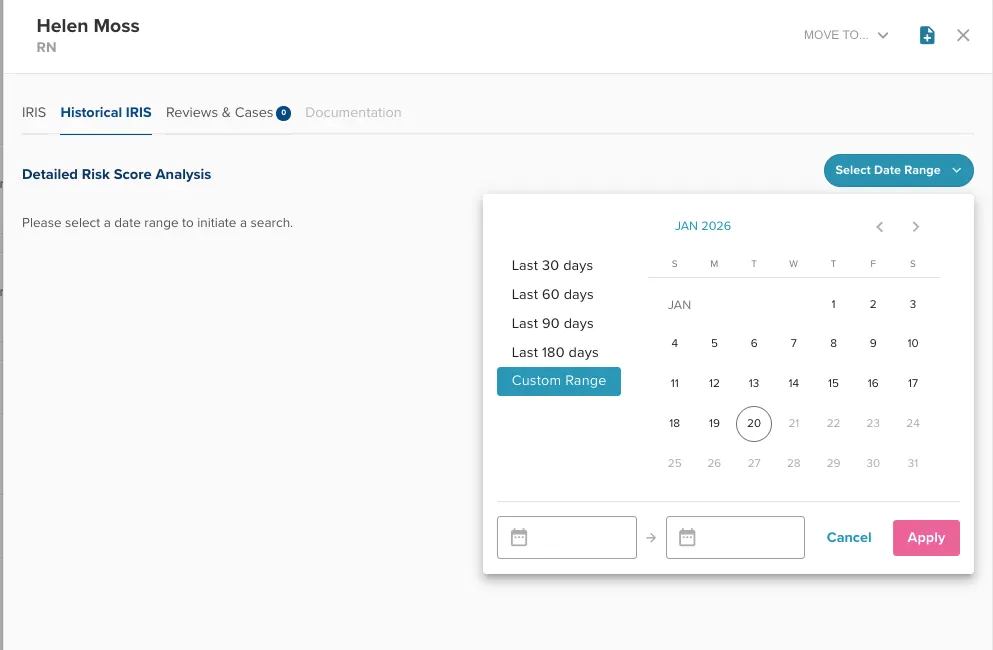
Select a custom date range to view IRIS scores for an individual user.
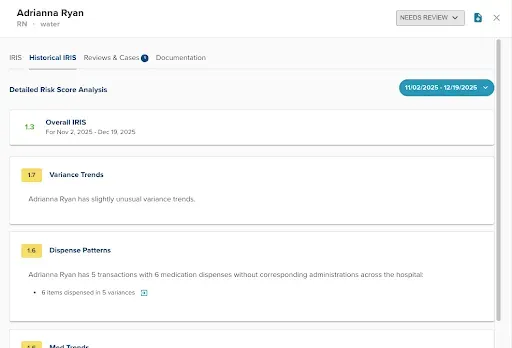
Open a Review on a custom date range, as long as the user doesn’t have an active review.
Portability of IRIS Detailed Risk Panel
ControlCheck creates the ability to view the IRIS Detailed Risk Panel from new pages in the application - specifically the Patient Care Audit Table and Cases. In this enhancement, a panel of IRIS details can be accessed when clicking a provider’s name.
Key Benefits Include:
- Quickly access IRIS details, historical review and case data from new areas of the application
- Determine what was reviewed in historical reviews from the Documentation tab
- Access historical reviews and cases from the Reviews & Cases tab
- Sort providers by flagged or current score on the IRIS Worklist, including metric scores
Patient Care Audit Table - How to Use:
- Access from the audit table/event summaries by clicking a providers name. This is the same Detailed Risk Panel from IRIS.
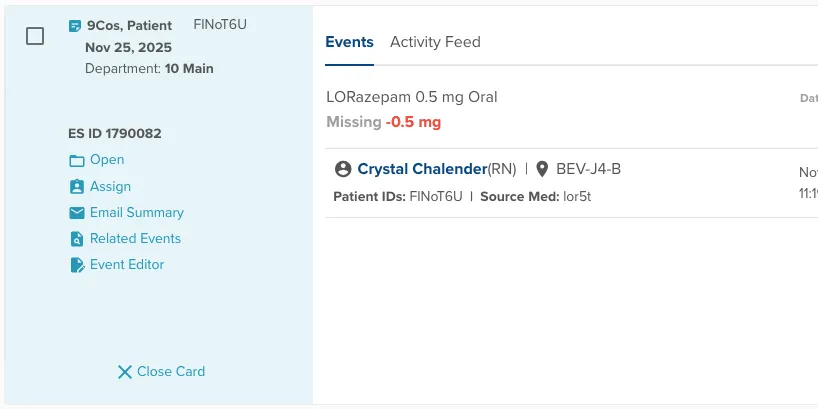
Event Summary cards with have User names as clickable links.
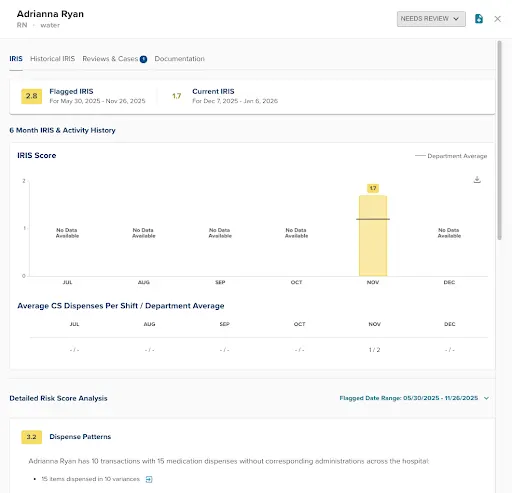
The panel pans out with recent and metric IRIS details surrounding a provider’s behavior.
Note: The IRIS tab on the Event Summary card will be deprecated as part of this change.
Cases - How to Use:
- Access from the Case by clicking IRIS Analytics. This is the same Detailed Risk Panel from IRIS.
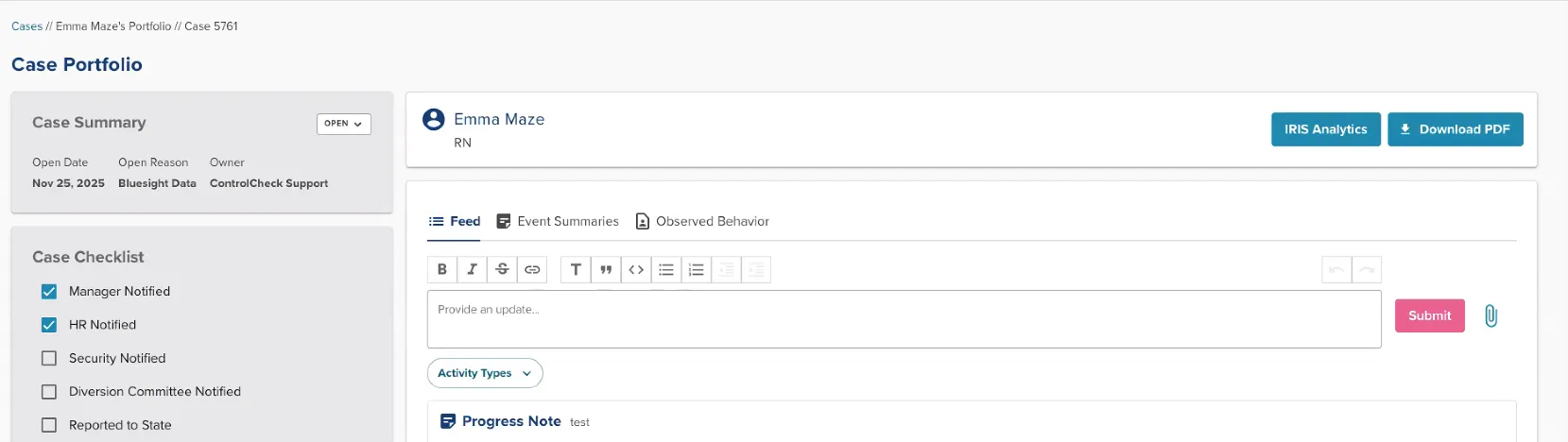
Please note: (1) the User Portfolio page listing historical Cases on the user will be deprecated. Users should use the Reviews & Cases tab within the Detailed Risk Panel to navigate to a historical case. (2) the IRIS scores at the top of the Case Portfolio page will be deprecated. Users should use the Detailed Risk Panel & Historical IRIS tab to view IRIS scores.
IRIS Worklist Enhancements - Metric Score Sorting
A key benefit of the legacy IRIS version was the ability to view IRIS scores based on a certain metric. Some customers really value Med Trends, for example. This capability was not included as part of IRIS Worklist… until now!
- This enhancements can provide users with the ability to see who is the highest in a metric they feel strongly about - use it on the All Users tab to see who has the highest score for that metric and manually move them to Needs Review if not already flagged!
- Use it on Needs Review if you have a long list and want to prioritize reviews based on users having an elevated IRIS score for a specified metric.
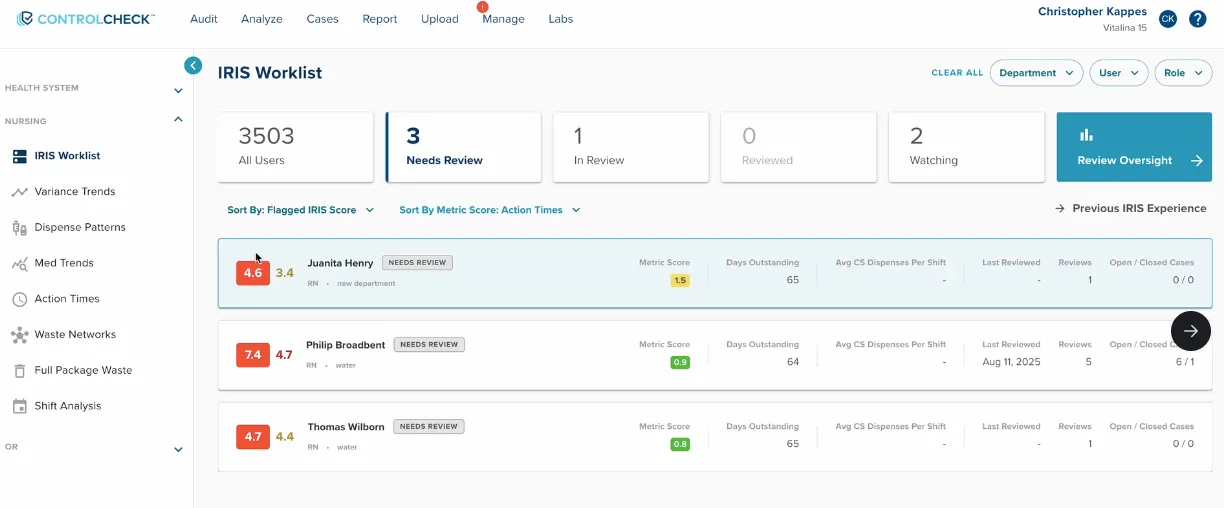
On the IRIS Worklist, users can filter providers by their metric scores for easy comparison.
Metric Score Sort - How to Use:
- When viewing the cards on IRIS Worklist and sorting by either Flagged IRIS Score or Current IRIS Score, an additional Sort By will appear. This will default to the standard sort, but users can override the sort to choose a specific Metric to sort their IRIS user list by.
- Metric Score will appear in the IRIS Card when selected for the specified metric.
- The Metric Score will be based on either the Flagged or Current IRIS score depending on your primary sort.
IRIS Worklist Enhancements - Custom Date Filtering
One of the benefits of IRIS Worklist is the prescriptiveness of the system automatically flagging a user if they reach a red IRIS score. In the legacy version of IRIS and as IRIS scores get updated daily, a user could float into the red and back into the green before you actually login to review your top users! However, this rigidness introduced in IRIS Worklist of removing the Date Filter also prevents the flexibility to look at a users behavioral and metric scores for a greater time duration. Welcoming back the Date Filter!
Key Benefits Include:
- Update the date filter and recalculate IRIS scores for all users for the time range selected.
- Current Score now becomes what you have selected in the date range filter. The default will remain the same. The hover on the Current Score in the IRIS card will state “Current IRIS Score for the selected date range.”
- The date range here would be passed to the Detailed Risk Panel when opened for a user.
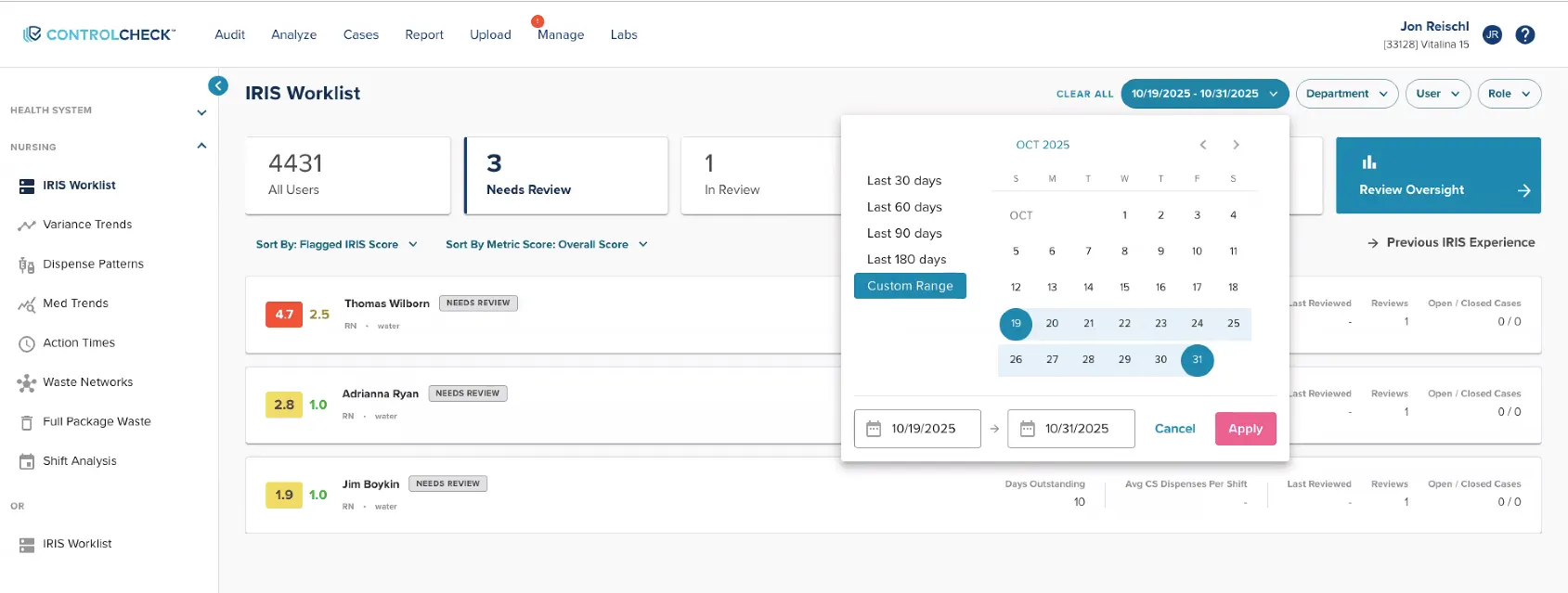
Please note that updating the date range on IRIS is performing a live calculation to calculate IRIS scores for all users in the hospital for that date range. IRIS Worklist is performant because scores are saved on a rolling nightly basis. Performing a live calculation and depending on system load it should be completely expected for this to take a bit of time.
Impacts of Legacy Features by IRIS Detail Panel
- IRIS 1:As a part of this release, all hospitals leveraging the “IRIS 1” experience will be moved to IRIS Worklist and the IRIS Detail Panel experience
- The IRIS Detail Feature provides no loss of functionality
- The IRIS 1 experience will not be supported in the future to include new IRIS metrics planned in 2026 (namely, Dispense After Discharge, Pain Related Analysis, and Pain Scores)
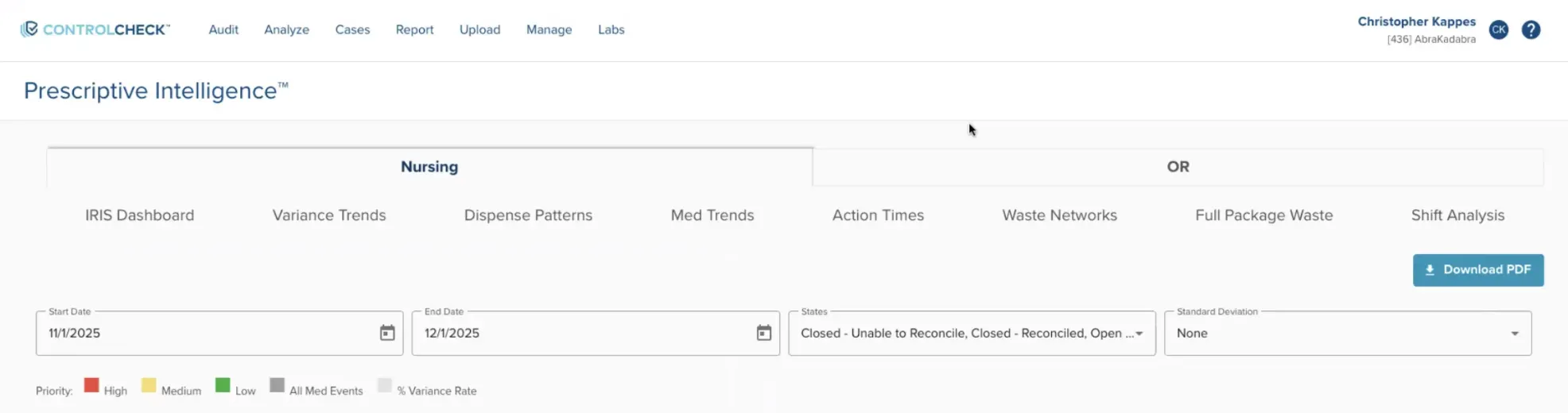
IRIS 2: Due to the anticipated improvements of Metric Sorting and Custom Date range selection, the ‘Previous IRIS Experience’ (or ‘IRIS 2’) will be sunset ~March 2026. We want users to feel comfortable with the enhancements being made to IRIS Worklist before the legacy IRIS experience is fully sunset.
Pharmacy Module Cinderella Rule
On the Pharmacy Module Audit Table, we know that events that occur within a sliding 12 hour window of each other, even across midnight, can group. However, up until now, there’s a window of time where events occurring before midnight will remain open until they can be reconciled when data from the following day are sent to ControlCheck.
Now, hospitals have the option to enable our Cinderella Rule (sometimes referred to as Embargo Rule). This rule holds unreconciled events occurring within 4 hours of midnight off the audit table so that they have a chance to reconcile with data sent the following day, thus reducing unnecessary noise in your process.
NOTE: The default setting is 4 hours, but this can be set to a custom time preference.
This is a feature that is currently available for the Patient Care Module that we’re bringing to the Pharmacy Module this week. To minimize disruption, this setting is turned off be default. To enable this for your locations, please contact your Customer Success Manager to coordinate enablement of this feature.
Login User Experience
Recently, we’ve made changes to login behavior that allows ControlCheck to route users to specific pages after logging in. In this release cycle, we also made login behavior adjustments to provide a smoother experience when navigating in and out of the app or between hospitals. Here’s the ruleset that you should expect:
- When clicking Logout and then and logging back in, users are redirected to the dashboard
- If clicking on a bookmark or a link to a specific page in my browser, users are redirected to that page after logging in
- If logged out via timeout, return to users to the last page there were on after logging back in
- When clicking Switch Hospital,take the user to the same page in the new hospital assuming that the page is configured for that HID and the user has access
- If these conditions aren’t met, then redirect users to the dashboard.
SSO NOTE: Only the Switch Hospital rule applies for customer logging in via an Single Sign On (SSO) Method.
Was this article helpful?
That’s Great!
Thank you for your feedback
Sorry! We couldn't be helpful
Thank you for your feedback
Feedback sent
We appreciate your effort and will try to fix the article